
WordPress Site Slow Fix is often the first thing website owners search for when pages take too long to load, and visitors start leaving before they even see the content. Google is pushing you down. And every second that passes costs you money.
A slow WordPress website can hurt your rankings, increase bounce rates, lower conversions, and create a poor experience for every visitor who lands on your webpage.
You are not alone. Millions of WordPress site owners deal with this exact problem. And the scary part? Most of them never figure out why it is happening. They try random fixes, nothing works, and they give up.
This article will prevent that from happening to you.
You will learn exactly what is slowing down your WordPress site. Then you will get clear, step-by-step fixes you can start using today. No guesswork. No fluff. Just real solutions that actually work.
What Are the Most Common Causes of a Slow WordPress Site?
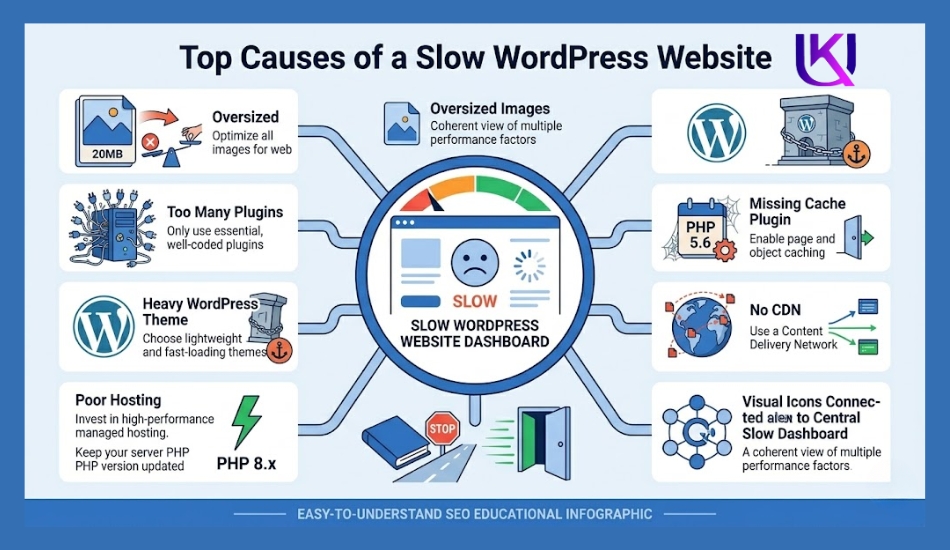
Most speed problems have clear causes and can be fixed without rebuilding your entire site. In many cases, the issue comes from oversized images, too many WordPress plugins, a heavy WordPress theme, missing cache plugins, outdated server settings, or weak hosting performance. Tools like PageSpeed Insights and GTmetrix can quickly reveal where your site is slowing down.
If your website loads slowly on mobile, your WordPress admin feels sluggish, or visitors are waiting several seconds for pages to appear, there are proven solutions available today.
From image optimization and WP Rocket caching to Cloudflare CDN setup and hosting upgrades via Cloudways, the right speed-optimization steps can make a noticeable difference.
In this guide, you will learn why your WordPress site is slow, how to identify the real cause, and the practical fixes you can apply today to create a faster, optimized website that performs better for both users and search engines.
Why Speed Matters More Than You Think?
Before we fix anything, you need to understand what is at stake.
Google measures something called Core Web Vitals. These are speed signals that directly affect where your site ranks. A slow site gets pushed down. A fast site gets pushed up. It is that simple.
But it is not just about rankings.
Studies show that 53% of mobile users leave a site if it takes more than 3 seconds to load. That means more than half your visitors could be walking out the door before they even see what you offer.
A slow WordPress site is not just annoying. It is a business problem.
Step One: Find Out What Is Actually Slowing You Down?
Do not guess. Diagnose first.
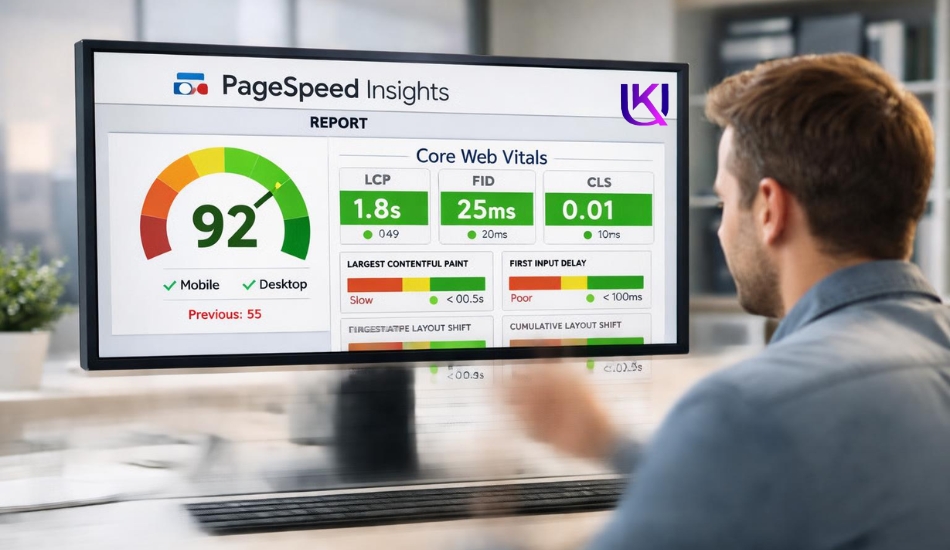
Run your site through Google PageSpeed Insights or GTmetrix. Both tools are free. Both give you a score from 0 to 100. More importantly, they tell you exactly what is wrong.
Here is what to look for:
- Largest Contentful Paint (LCP): How long it takes for the biggest item on your page to load. Aim for under 2.5 seconds.
- Total Blocking Time (TBT): Scripts that freeze your page before a visitor can click anything.
- Cumulative Layout Shift (CLS): When your page jumps around as it loads. This drives people crazy.
Write down what the tool flags. That is your fix list. Now, let us go through each common problem and solve it.
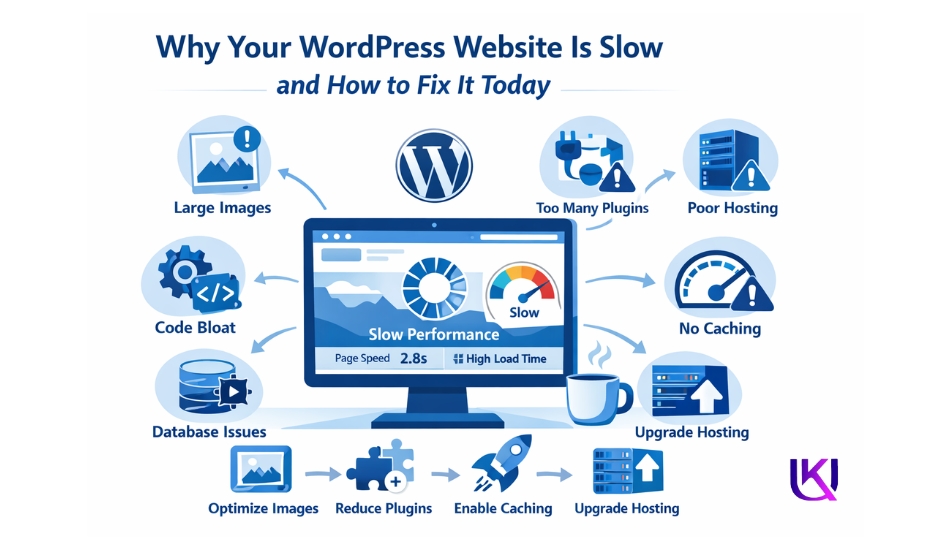
Why Is My WordPress Website So Slow and How Can I Fix It Today?
If your WordPress website has slow-loading pages, the problem usually comes from oversized images, too many WordPress plugins, a heavy WordPress theme, missing cache plugins, or weak hosting resources.
Before making changes, test your webpage with PageSpeed Insights or GTmetrix to find the exact bottleneck.
Most website owners can improve speed optimization by converting images to WebP, enabling caching with WP Rocket, cleaning up unused plugins, and using a CDN such as Cloudflare.
If server performance is the issue, moving to a managed hosting platform like Cloudways can dramatically improve loading times. These fixes help create an optimized website that loads faster for visitors and supports better SEO performance.
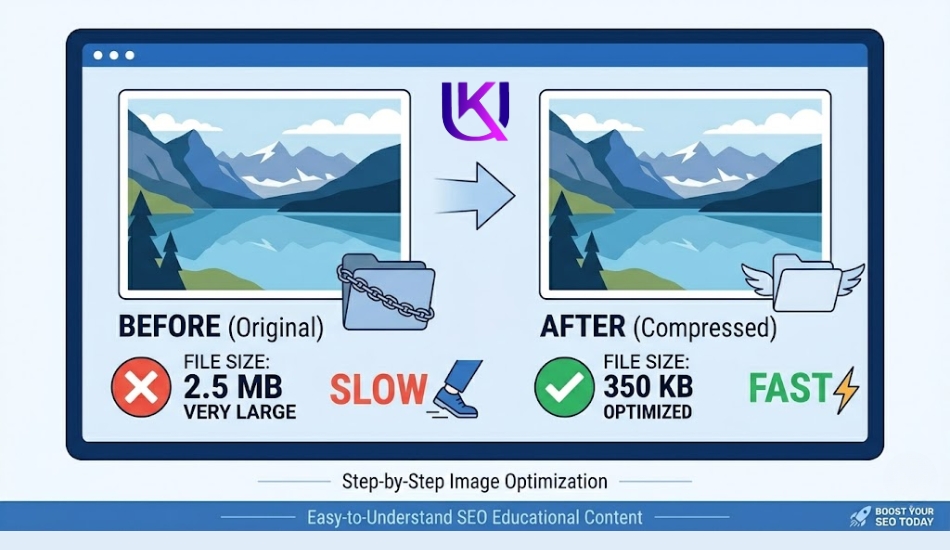
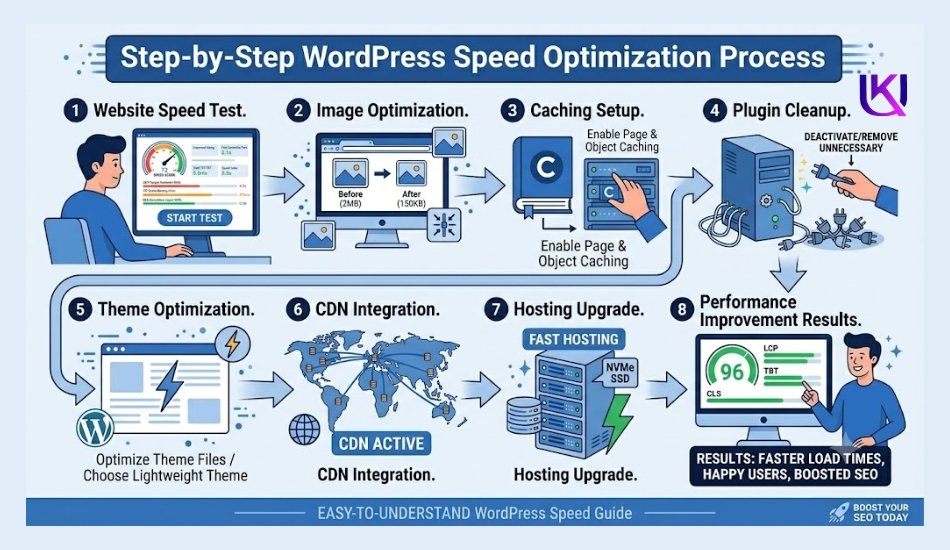
Fix 1: Your Images Are Too Big
This is the number one reason WordPress sites load slowly.
A photo from your phone can be 4MB or more. Your page does not need that. Your page needs a small, sharp version, not the original file from your camera roll.
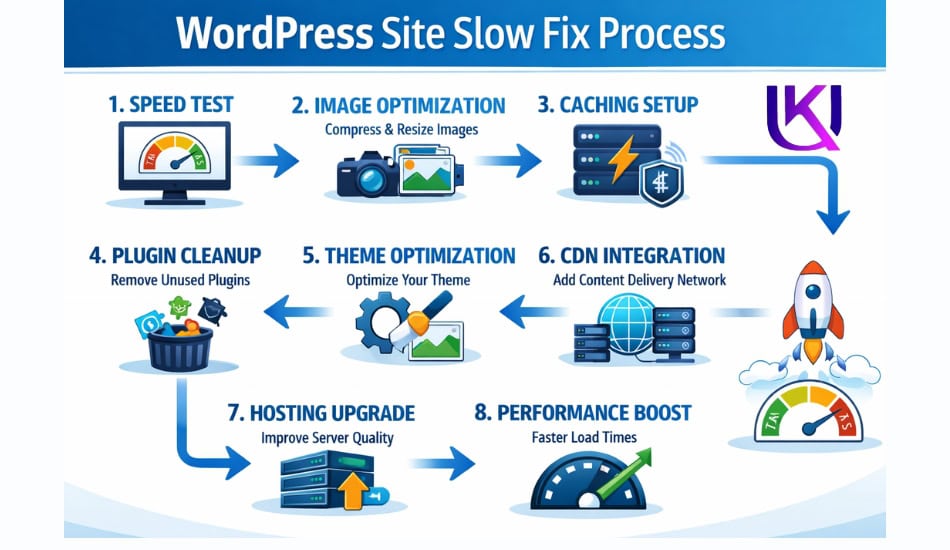
1. What you do WordPress Site Slow Fix:
Install a plugin called Smush or ShortPixel. These tools automatically compress your images when you upload them. You do not need to do anything extra. They run in the background and shrink your file sizes without making your images look blurry.
2. Switch to WebP format.
WebP is a newer image type. It is smaller than JPEG or PNG but looks just as good. Most modern browsers support it. Plugins like ShortPixel convert your images to WebP automatically.
3. Turn on lazy loading.
Lazy loading means your images only load when a visitor scrolls down to see them. The images at the top load first. The rest wait. This makes your site feel much faster from the very first second.
In WordPress 5.5 and later, lazy loading is turned on by default. But check your theme and page builder settings to make sure it is not disabled.
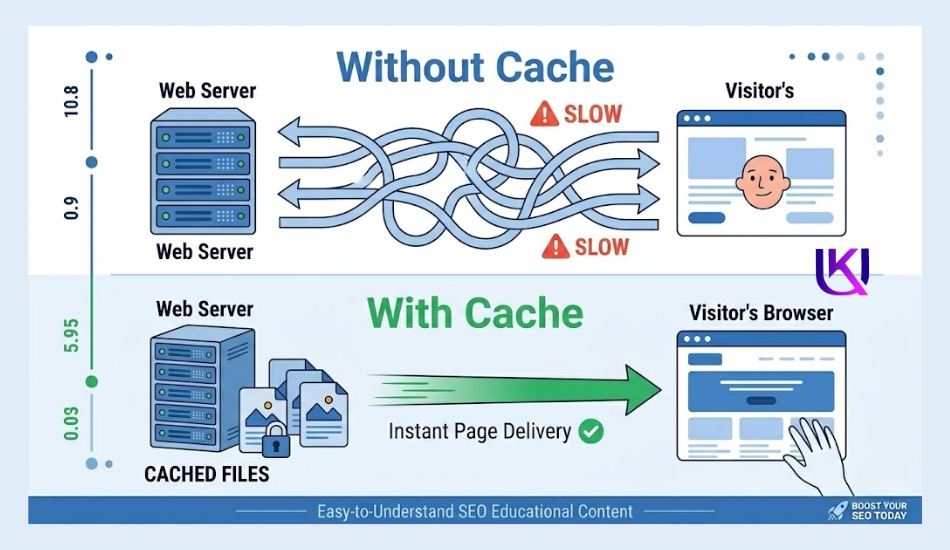
Fix 2: You Have No Caching Set Up
Every time someone visits your site, WordPress builds the page from scratch. It pulls data from your database, runs PHP code, and assembles everything before sending it to the browser.
That takes time. A lot of time.
Caching stops that from happening. It saves a ready-made version of your page and serves that instead. No rebuilding. No waiting.
What to do if your WordPress Site Slow Fix:
Install a caching plugin. Here are your best options:
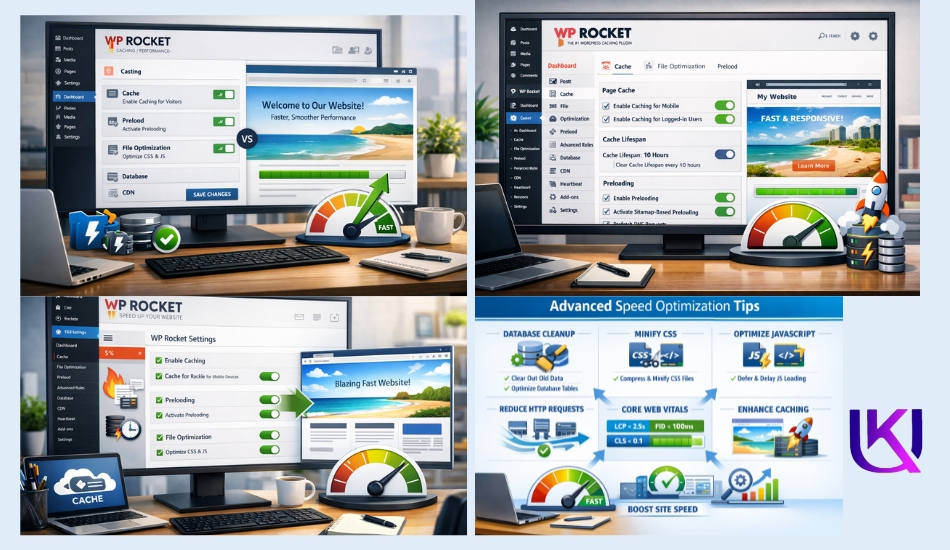
- WP Rocket (paid, around $59/year): The most powerful and beginner-friendly option. Turn WP Rocket on, and it works. You do not need to configure much. Most WordPress developers call this the gold standard.
- LiteSpeed Cache (free): Works best if your hosting uses LiteSpeed servers. Incredibly fast when paired correctly.
- W3 Total Cache (free): More technical to set up, but very powerful if you know what you are doing.
If you just made changes to your site and it still looks slow, clear your cache first. Sometimes the cached version is outdated. Go to your caching plugin and click “Clear All Cache.” Then test your speed again.
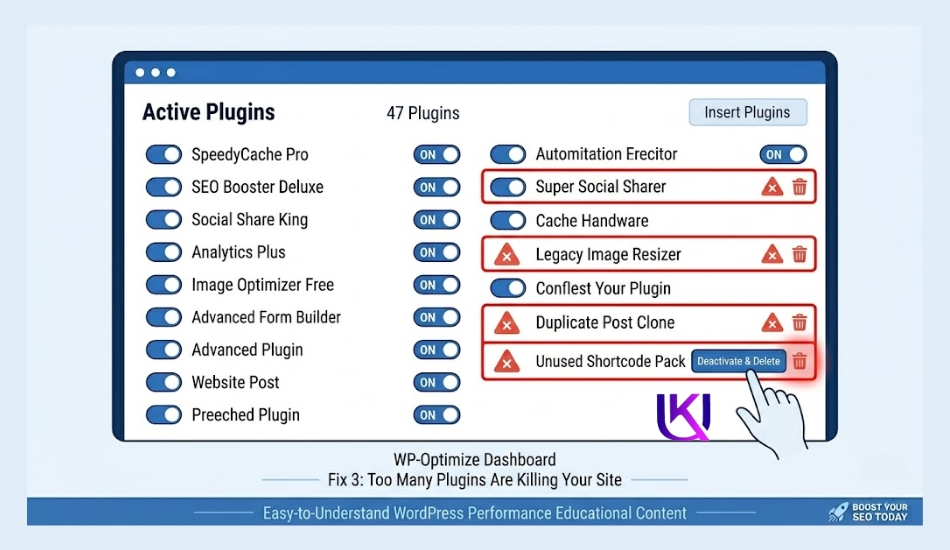
Fix 3: Too Many Plugins Are Killing Your Site
Here is something most people do not expect from a WordPress site: slow. Fix your plugins are probably slowing you down.
Every plugin you install adds code that runs every time someone visits your site. One or two extra plugins? No big deal. Thirty plugins? That is a real problem.
Some plugins are written badly. They load dozens of scripts on every page, even when those scripts are not needed. Others call external servers, which adds extra load time. A few do both.
What you do WordPress Site Slow Fixed Guide:
Go to your WordPress dashboard. Click Plugins > Installed Plugins. Look at everything on that list.
Ask yourself one question for each plugin: Does my site need this to work properly?
If the answer is no, deactivate it. Then delete it. Do not just deactivate. Delete. A deactivated plugin can still leave behind database clutter.
After you clean up, test your speed again. You may be shocked at the difference.
Also, update everything.
Old plugins, themes, and WordPress core versions have performance bugs. Developers fix those bugs in updates. If you are running outdated versions, you are running with known problems that have already been solved.
Go to Dashboard > Updates and update everything.
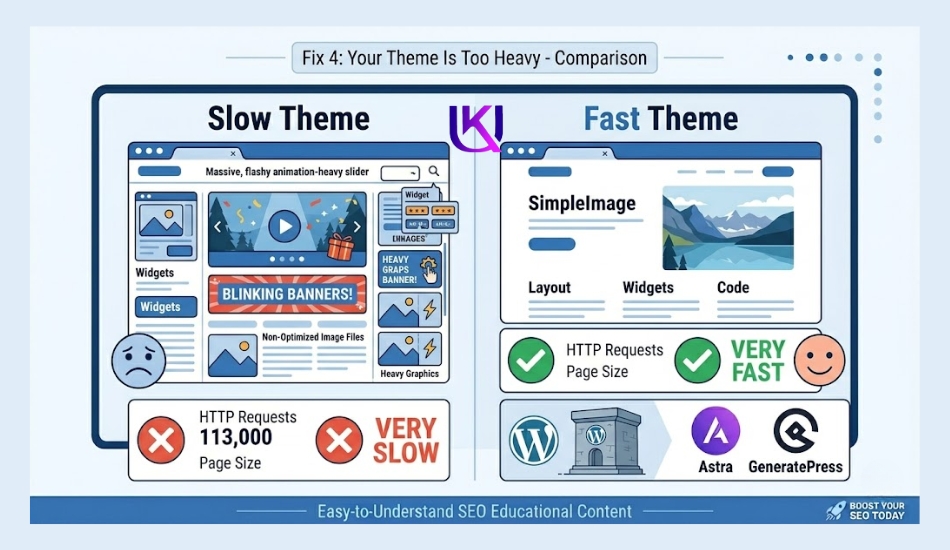
Fix 4: If Your Theme Is Too Heavy
Not all WordPress themes are built for speed.
Some themes come loaded with built-in page builders, animation effects, font libraries, and other features you will never use. All of that code loads on every page, whether you use those features or not.
What you do WordPress Site Slow Fix Theme:
If your site uses a bloated theme, especially one bundled with a drag-and-drop builder, consider switching.
The two fastest themes in WordPress right now are Astra and GeneratePress. Both are lightweight, well-coded, and built specifically for performance. Both have free versions that are more than enough for most sites.
If you use Elementor or another page builder and love it, you can still use it with Astra or GeneratePress. The combination is much faster than using a heavy theme with a page builder built in.
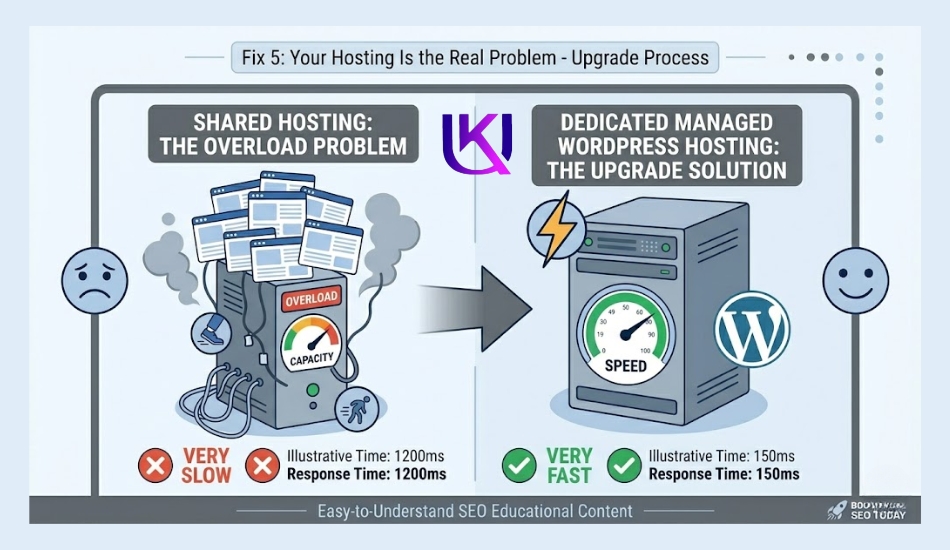
Fix 5: Your Hosting Is the Real Problem
Sometimes you do everything right, and your site is still slow. That usually means your hosting is the problem.
Cheap shared hosting puts hundreds of websites on one server. When those sites get traffic at the same time, everyone slows down. Your site is at the mercy of strangers sharing the same resources.
This is not a plugin problem. No caching plugin can fix a server that does not have enough power.
What you do :
Move to better hosting. Here are the options worth considering:
- WP Engine: Managed WordPress hosting built for speed and reliability. Everything is optimized specifically for WordPress. Great for businesses and agencies.
- Cloudways: More affordable than WP Engine, more flexible. You pick your cloud provider, like DigitalOcean or Google Cloud, and Cloudways manages everything. Excellent for growing sites.
- Kinsta: Premium managed hosting with built-in performance tools. Uses Google’s infrastructure.
If you are on basic shared hosting and your site is getting real traffic, upgrading your hosting will likely be the single biggest speed improvement you make.
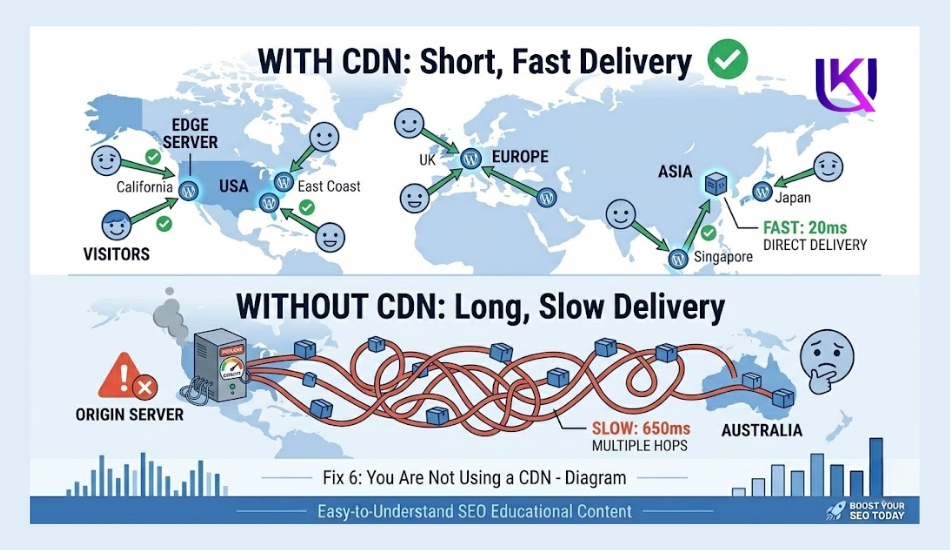
Fix 6: You Are Not Using a CDN
A CDN is a Content Delivery Network. It works; your website lives on a server, probably in one location. When someone in Los Angeles visits your site, the data travels from that server to their browser. If your server is in New York, that is a long trip. Every millisecond of that trip adds to your load time.
A CDN stores copies of your site on servers all over the world. When someone in Los Angeles visits, they get served by a server nearby, not from New York. The trip is shorter. The page loads faster.
What you do:
Sign up for Cloudflare. The free plan is powerful. It acts as a CDN, adds a security layer, and compresses your files before serving them. Millions of WordPress sites use it.
Log in to your hosting account and change your nameservers to point to Cloudflare. Then turn on the speed features inside your Cloudflare dashboard. This takes about 15 minutes and costs nothing.
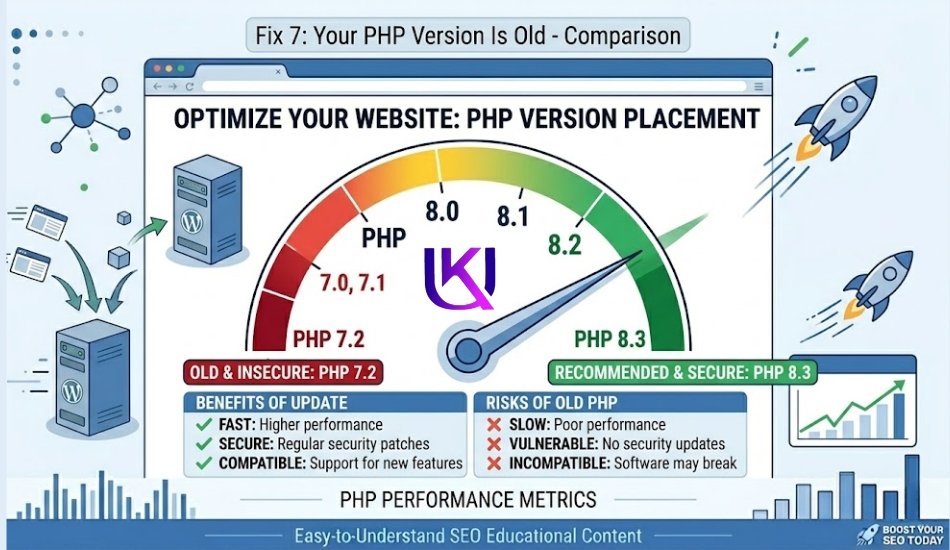
Fix 7: Your PHP Version Is Old
PHP is the programming language WordPress runs on.
Old PHP versions are slow. Newer versions process code much faster. PHP 8.2 and 8.3 are significantly faster than PHP 7.4, which many sites are still running.
What you do:
Log in to your hosting control panel (usually cPanel or Plesk). Look for a setting labeled ‘PHP Version’ or ‘PHP Manager’. Check what version you are running. If it is anything below 8.1, upgrade it.
Before you upgrade, back up your site. Most modern plugins and themes support PHP 8.x, but some older tools do not. Test your site after switching to make sure everything still works.
Fix 8: If Your Database Is Full of Junk
Every time you publish a post, WordPress saves a revision. Every spam comment, every deleted plugin, every draft that never went live, all of it sits in your database and takes up space.
A bloated database slows down every query WordPress makes. And WordPress makes a lot of queries every time a page loads.
What you do:
Install WP-Optimize. This free plugin cleans up your database with one click. It removes post revisions, trashed content, spam comments, and other leftover junk. Run it once a month to keep your database lean.
9. A Quick Check: Is Your Admin Slow Too?
Sometimes the slowness is not on the front end. It is inside your WordPress dashboard.
If your WordPress admin is slow, the cause is usually one of these:
- Too many plugins are running background tasks
- A plugin connecting to an external API that is timing out
- Heartbeat API running too frequently (WordPress checks for updates constantly in the background)
You can control the Heartbeat API with the free Heartbeat Control plugin. Set it to run less often, and your admin will feel snappier.
Your WordPress Site Slow Fix Checklist
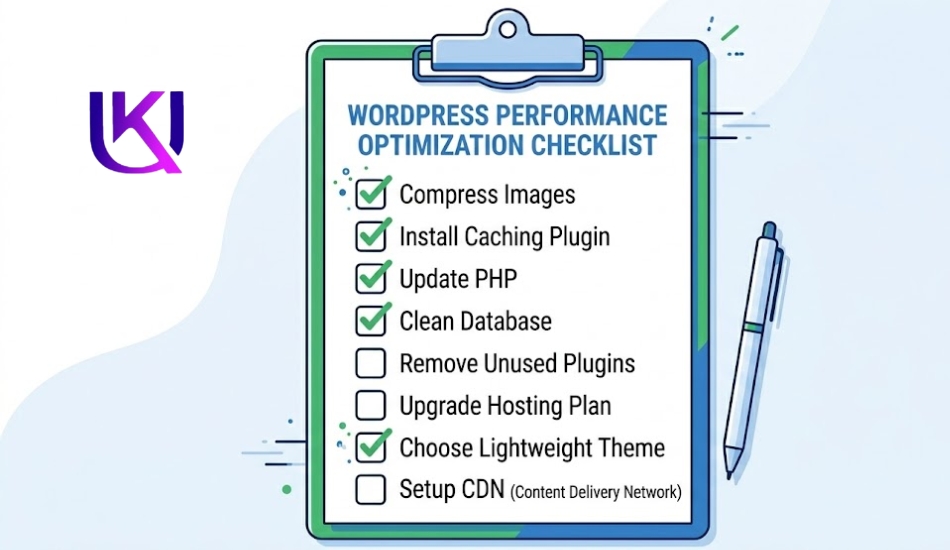
Here is everything in one place. Work through this list from top to bottom.
- Run a speed test on GTmetrix or Google PageSpeed Insights
- Compress all images using Smush or ShortPixel
- Convert images to WebP format
- Enable lazy loading
- Install a caching plugin (WP Rocket, LiteSpeed Cache, or W3 Total Cache)
- Clear your existing cache
- Deactivate and delete plugins you do not need
- Update WordPress core, all plugins, and your theme
- Switch to a lightweight theme like Astra or GeneratePress
- Upgrade to better hosting if you are on shared hosting
- Set up Cloudflare CDN (free plan)
- Check and upgrade your PHP version to 8.1 or higher
- Clean your database with WP-Optimize
- Fix Heartbeat API if your admin is slow
You do not have to do all of this in one sitting. Start with images and caching. Those two fixes alone will make a noticeable difference. Then work your way down the list.
Advanced WordPress Speed Optimization Tips
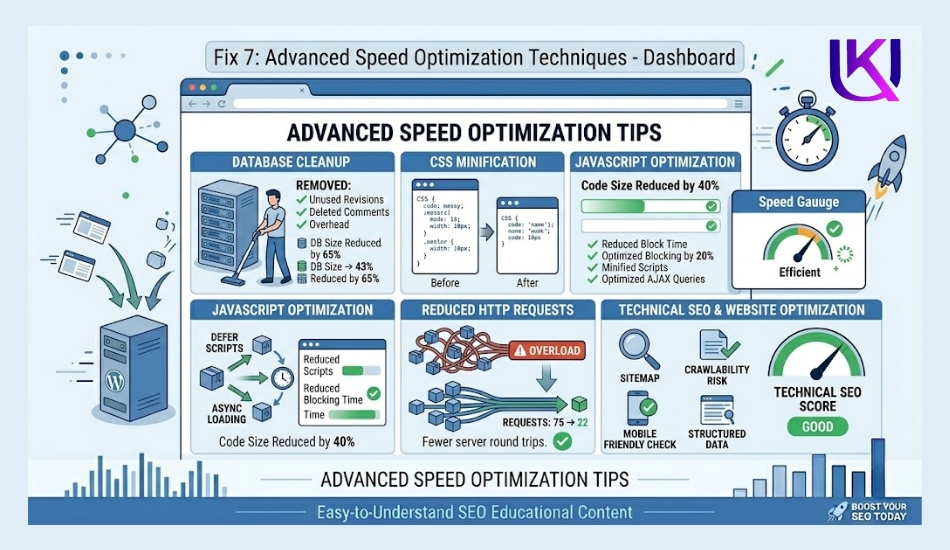
If you have already optimized images, installed caching, and upgraded your hosting, but your site still feels slow, it may be time for deeper performance improvements. These advanced WordPress speed optimization tips can help reduce loading times even further and improve your overall user experience.
1. Database Cleanup
Your WordPress database stores everything from posts and pages to comments and settings. Over time, it collects unnecessary data that can slow down your website.
Common database clutter includes:
- Post revisions
- Spam comments
- Deleted content
- Expired transients
- Unused plugin data
Cleaning up this data helps WordPress work more efficiently. Many website owners use database optimization tools included in plugins like WP-Optimize to remove unnecessary records safely.
A smaller, cleaner database often leads to faster page generation and better website performance.
2. Reduce HTTP Requests
Every time a visitor opens a webpage, the browser requests files such as images, CSS files, JavaScript files, fonts, and icons. These are called HTTP requests.
The more requests your webpage makes, the longer it may take to load.
You can reduce HTTP requests by:
- Removing unnecessary plugins
- Deleting unused themes
- Limiting external scripts
- Combining small CSS and JavaScript files when possible
- Using lightweight design elements
Reducing these requests helps browsers load your pages faster and improves overall speed optimization.
3. Disable Unused Features
Many WordPress themes and plugins include features that you may never use. Even when inactive, some of these features still load code and consume resources.
Examples include:
- Unused widgets
- Social sharing scripts
- Emoji support
- Embedded content features
- Unused page builder modules
Review your site’s active features and disable anything that does not provide value to your visitors.
A lean website performs better because it only loads what is truly needed.
4. Minify CSS and JavaScript
CSS controls your website’s appearance, while JavaScript powers interactive functions. These files often contain extra spaces, comments, and formatting that are useful for developers but unnecessary for browsers.
Minification removes this extra code and creates smaller files that load faster.
Benefits of minifying CSS and JavaScript include:
- Faster page loading
- Reduced file sizes
- Improved PageSpeed Insights scores
- Better user experience
Many cache plugins, including WP Rocket and LiteSpeed Cache, offer built-in tools to minify CSS and JavaScript automatically.
When combined with caching, image optimization, and quality hosting, minification can help create a faster and more optimized WordPress website.
When You Should Hire a WordPress Developer
Many WordPress speed problems can be fixed with image optimization, caching, plugin cleanup, and better hosting. However, some issues go deeper than basic settings. If you have tried the common fixes and your website is still slow, it may be time to hire a WordPress developer.
An experienced developer can find hidden performance problems, optimize your website’s code, and fix issues that most site owners cannot easily diagnose.
1. Persistent Slow Loading Problems
If your website still loads slowly after using tools like PageSpeed Insights, enabling caching, optimizing images, and removing unnecessary plugins, there may be a deeper technical issue.
Common examples include:
- Poorly written custom code
- Theme conflicts
- Plugin conflicts
- Database inefficiencies
- Excessive scripts running in the background
These problems can be difficult to identify without technical experience. A WordPress developer can perform a full speed audit, locate the bottlenecks, and implement targeted fixes that improve performance without breaking your website.
2. Server-Level Issues
Sometimes the problem is not WordPress itself. The real issue may be the server that powers your website.
Signs of server-related performance problems include:
- High server response times
- Frequent downtime
- Slow performance during traffic spikes
- Resource limitations on shared hosting
- Poor server configuration
A developer can review server logs, optimize PHP settings, configure caching correctly, and recommend better hosting solutions when necessary. They can also work with your hosting provider to resolve issues that are affecting speed.
If your hosting environment is the bottleneck, no amount of plugin optimization will fully solve the problem.
3. WooCommerce Performance Problems
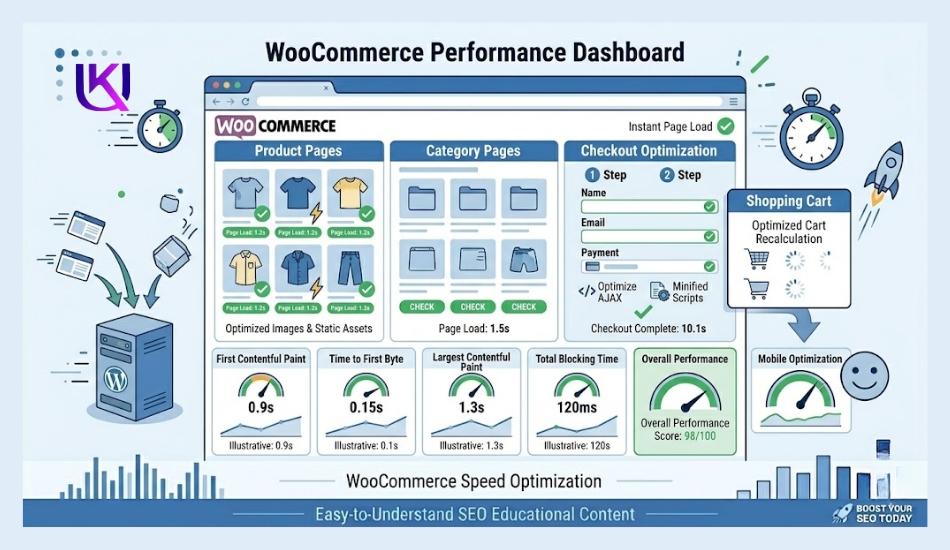
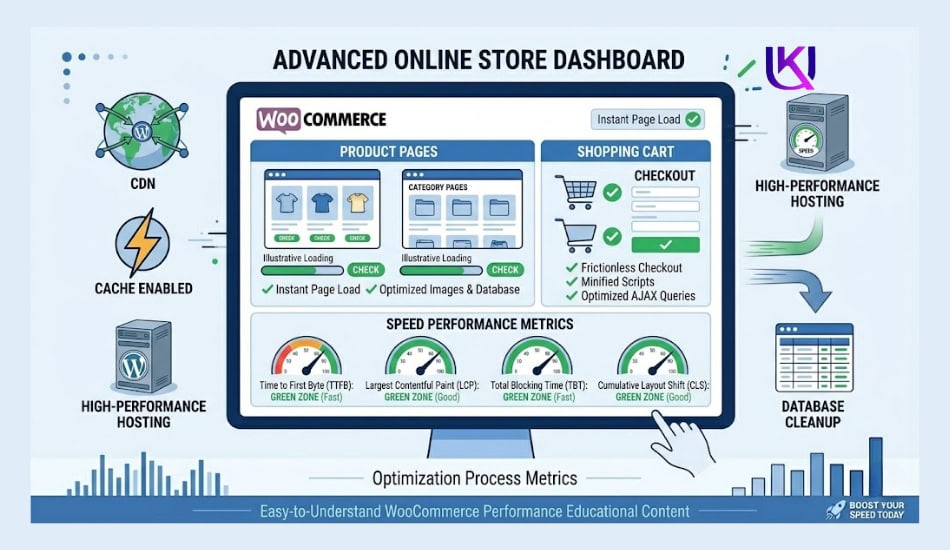
WooCommerce websites are often more demanding than standard WordPress sites. Product pages, customer accounts, shopping carts, checkout pages, and inventory management all require additional server resources.
As your store grows, you may notice:
- Slow product pages
- Delayed cart updates
- Slow checkout processes
- Database performance issues
- Poor mobile shopping experiences
A WordPress developer with WooCommerce experience can optimize database queries, improve caching rules, reduce unnecessary scripts, and fine-tune your store for faster performance.
This is especially important because even small delays during checkout can lead to lost sales and abandoned carts.
If your WooCommerce store generates revenue, investing in professional speed optimization can often pay for itself through better user experience, higher conversion rates, and improved search visibility.
The Bottom Line: Why Is My WordPress Website So Slow and How Can I Fix It Today?
The key is to stop guessing and start diagnosing. Run the speed test. Read the report. Fix the issues it flags. Then test again.
Speed is not a technical luxury. It is the foundation your entire site depends on. Fast sites rank higher, keep visitors longer, and convert better.
You have the tools now. And fix it.
Relevant article: How I Use AI Tools to Build a Content Plan That Actually Ranks?

FAQs: Are These Hidden Issues Slowing Down Your WordPress Website?
1. Why is my WordPress website very slow?
The most common causes are oversized images, no caching, too many plugins, cheap hosting, and an outdated PHP version. Run a speed test on GTmetrix or Google PageSpeed Insights to find out exactly what is slowing your site down.
2. How to speed up a slow WordPress website?
Start with caching, image compression, and plugin cleanup. Those three fixes solve most WordPress speed problems. If your site is still slow after those, look at your hosting and consider a CDN like Cloudflare.
3. Why is WordPress so slow today?
If your site has slowed down suddenly, something has recently changed. Check if a plugin or theme was updated. Check if your hosting server has an issue. And check your database for unexpected growth. A sudden slowdown almost always has a specific cause.
4. Why is my website suddenly so slow?
Sudden slowdowns in WordPress usually point to a bad plugin update, a server problem, a traffic spike, or a hack. Check your hosting status page first. Then deactivate recently updated plugins one by one until you find the culprit.
5. How do I clear the cache on my WordPress server?
Go to your caching plugin WP Rocket, LiteSpeed Cache, W3 Total Cache, etc. and look for a “Clear Cache” or “Purge All” button. Click it. If you are using a CDN like Cloudflare, clear the cache there too.
6. How to fix slow-loading pages in WordPress?
Compress your images, install a caching plugin, reduce your plugins, and switch to faster hosting if needed. Also, check your theme. A heavy theme is often the hidden cause of slow-loading pages.
7. Is WordPress outdated in 2026?
No. WordPress powers over 40% of all websites on the internet. It is actively developed and widely supported. The platform is not outdated, but old plugins, themes, and PHP versions on your installation can be.
8. Which is the fastest hosting for WordPress?
WP Engine, Kinsta, and Cloudways are consistently rated the fastest managed WordPress hosts. For budget options, SiteGround and Hostinger offer good performance at lower price points.