
WordPress Security Checklist helps you protect your website from hackers, malware, and data loss. If you run a WordPress site, a small security gap can put your work, visitors, and business at risk. You do not need to be a security expert to make your site safer.
Start with the basics. Keep WordPress core, themes, and plugins up to date. Use strong passwords and two-factor authentication (2FA).
Set up regular backups, install an SSL certificate, and use a firewall to block harmful traffic. Also review user access, scan for malware, and protect your WordPress login page.
This beginner step-by-step guide shows you how to check each part of your site’s security, fix common risks, and build a safer WordPress site.
If you run a blog, business website, or online store, you will learn what to check first and how to keep your site safe over time.
Why WordPress Security Matters
Because attackers move faster than ever.
Patchstack tracks WordPress flaws. Its 2026 report counted 11,334 new vulnerabilities in 2025. That is 42% more than the year before. About 91% of them lived in plugins. WordPress core had only a handful.
Your WordPress website may hold customer details, contact forms, business data, and payment information. If a hacker gets in, you could lose data, go offline, or damage your brand.
You do not need a large website to become a target. Weak passwords, old plugins, and poor hosting security can put any site at risk.
So here is the good news. WordPress itself is solid. The risk sits in the add-ons.
Here is the bad news. Reports that use Patchstack data say the first mass attacks can start within hours of a flaw going public. A “patch once a month” habit is too slow now.
Key idea: Most hacks do not break WordPress. They walk through a plugin you forgot to update.
Here are the main risks you should know.
1. Malware and Hacked Files
Malware is harmful code that can damage your website. It may send visitors to unsafe pages, steal data, or give hackers access to your site.
What you should do: Keep WordPress, themes, and plugins updated. Use a trusted security scanner to check for harmful files.
2. Weak Passwords and Stolen Login Details
A weak password makes it easier for attackers to access your WordPress dashboard. Reusing the same password across many sites also puts your account at risk.
What you should do: Use a unique password for every account. Turn on two-factor authentication (2FA) to add another layer of protection.
3. Outdated Themes and Plugins
Old themes and plugins may contain known security flaws. If you leave them unpatched, attackers may use those flaws to break into your site.
What you should do: Update trusted software as soon as practical. Remove themes and plugins you no longer use. Back up your site before major updates.
4. Data Loss and Website Downtime
A failed update, server problem, or cyberattack can break your site or erase important files. This can cost you time, sales, and customer trust.
What you should do: Set up automatic backups. Store a copy away from your main hosting account and test that you can restore it.
5. Unsafe Hosting and Poor Access Control
Your website may face extra risks if your hosting account lacks basic security or too many users have admin access.
What should you do?
Choose a host that offers security updates, malware scanning, and backup options. Give each user only the access they need.
Your First Security Step
Before changing anything, check your WordPress version, active plugins, user accounts, backup status, and hosting security tools. This gives you a clear view of what needs attention first.
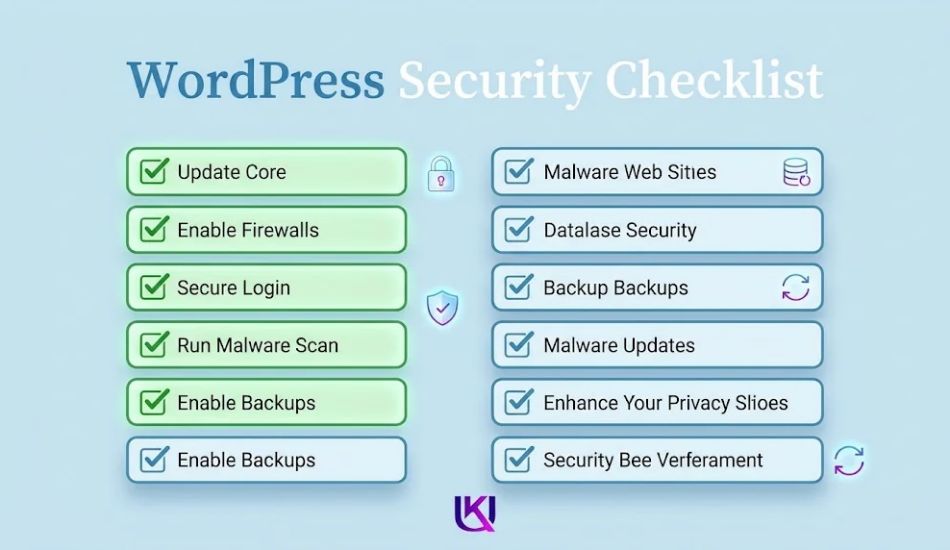
18 Steps Beginner’s Guide: WordPress Security Checklist
Use this WordPress Security Checklist to find weak spots and protect your site. Start with the items marked as high priority. Then work through the rest to build stronger security.
You do not need to finish every task at once. Fix the biggest risks first.
1. Keep WordPress Core, Themes, and Plugins Updated
Outdated software can leave your site open to known security flaws. Updates often fix these flaws and improve site stability.
Use this checklist:
- Update WordPress to a supported version.
- Update all active themes and plugins.
- Remove unused themes and plugins.
- Check that each plugin is still maintained by its developer.
- Replace plugins that are abandoned or have known security issues.
- Back up your site before major updates.
Expert tip: Do not install every update on a live business site without a plan. Take a backup first. For a busy online store, test major changes on a staging site before applying them to your live site.
2. Use Strong Passwords and Two-Factor Authentication
Your WordPress login is a key part of your site’s security. If someone steals an administrator’s password, they may gain control of the site.
Follow these steps:
- Use a long, unique password for each account.
- Store passwords in a trusted password manager.
- Enable two-factor authentication (2FA) for administrator accounts.
- Remove accounts you no longer need.
- Never share your administrator password with others.
- Change passwords if you suspect an account has been compromised.
Expert tip: Use 2FA for hosting, domain registrar, and business email accounts too. Protecting WordPress alone is not enough if an attacker can take over the accounts that control it.
3. Set Up Regular Website Backups
A backup gives you a way to recover your site after a hack, failed update, or server problem. But a backup only helps if you can restore it.
Check these items:
- Schedule automatic backups.
- Back up your database and website files.
- Store copies outside your main hosting account.
- Keep more than one recent backup when possible.
- Protect backup files from public access.
- Test a restore on a staging site.
Expert tip: If you run a WooCommerce store, back up your database often enough to protect recent orders and customer records. The right schedule depends on how often your store changes.
4. Install an SSL Certificate and Use HTTPS
An SSL/TLS certificate helps protect data sent between your website and its visitors. HTTPS also helps browsers confirm that they are connecting to the site covered by the certificate.
Use this checklist:
- Install a valid SSL/TLS certificate.
- Make sure your site loads over HTTPS.
- Redirect HTTP pages to HTTPS.
- Fix mixed-content warnings.
- Update WordPress and site URLs to use HTTPS where needed.
- Check that forms and checkout pages work correctly.
Expert tip: HTTPS does not stop every hack. You still need updates, strong logins, backups, and access controls.
5. Add a WordPress Firewall and Malware Scanner
A web application firewall (WAF) can block some harmful requests before they reach your site. A malware scanner can help find suspicious files or changes.
No single tool does everything. Here is how the jobs split up:
| Job | What It Does | Where to Get It |
| Firewall (WAF) | Blocks bad requests | Host, plugin, or cloud service |
| Malware scan | Finds infected files | Security plugin or scanner |
| Login shield | Limits tries, adds 2FA | Security plugin |
| Vulnerability alerts | Warns about weak plugins | Patchstack, Wordfence, and similar tools |
| Backups | Restores a clean copy | Backup plugin or host |
Pick one main security plugin. Running three at once can slow your site and cause clashes.
Check these items:
- Enable a trusted web application firewall.
- Run regular malware scans.
- Turn on security alerts where available.
- Review alerts instead of ignoring them.
- Remove harmful files only after confirming what they are.
- Keep your security tools updated.
Expert tip: A security plugin is one layer of protection, not a complete security plan. Your hosting provider, account settings, software updates, and backup process also matter.
6. Limit User Roles and Permissions
Every WordPress user should have only the access they need. Too many administrator accounts can put your site at risk. If one account is hacked, an attacker may gain control of your website.
WordPress has built-in user roles. Each role gives users different levels of access.
| WordPress role | What the user can do | Best use |
| Administrator | Manage most site settings, users, themes, and plugins | Site owner or trusted site manager |
| Editor | Manage and publish content from different authors | Content manager |
| Author | Write and publish their own posts | Regular blog writer |
| Contributor | Write posts but cannot publish them | Guest writer |
| Subscriber | Manage their own profile | Basic member account |
Your User Access Checklist
- Review all WordPress user accounts.
- Remove accounts that no longer need access.
- Give each user the lowest role needed for their work.
- Protect administrator accounts with strong passwords and 2FA.
- Check for unknown users with administrator access.
- Review user access when a team member leaves.
Expert tip: Do not give every writer an Administrator role just to let them publish articles. An Editor or Author role may be enough.
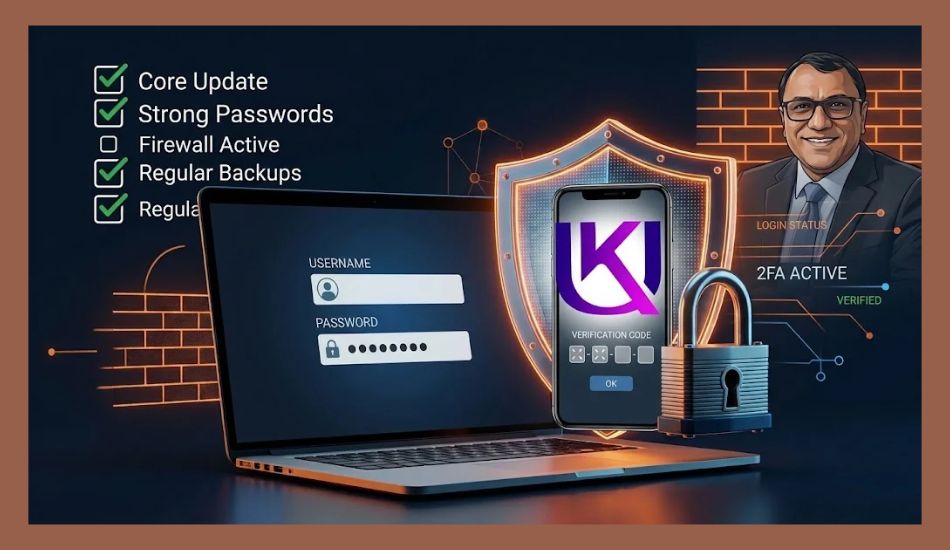
7. Protect Your WordPress Login Page
Your WordPress login page is a common target for password attacks. Attackers may try many username and password combinations to gain access.
You can reduce this risk with a few simple steps.
Your Login Security Checklist
- Enable 2FA for privileged accounts.
- Use strong, unique passwords.
- Set sensible login attempt limits where appropriate.
- Use a trusted CAPTCHA or bot protection tool if needed.
- Monitor failed login attempts.
- Keep WordPress and login security tools updated.
You can also use a web application firewall to block suspicious traffic before it reaches your login page.
Should you change your WordPress login URL?
Changing the default login URL may reduce some unwanted login traffic. However, it is not a substitute for strong passwords, 2FA, or proper access controls.
8. Secure Your WordPress Hosting Account
Your website’s security also depends on your hosting account. Even a well-protected WordPress site can face problems if attackers gain access to its hosting control panel.
Your Hosting Security Checklist
- Use a hosting provider that offers regular server security updates.
- Enable 2FA on your hosting account.
- Use a unique password for your hosting account.
- Enable alerts for important account changes where available.
- Remove old FTP and hosting accounts.
- Use SFTP or SSH instead of unencrypted FTP when supported.
- Check whether your host provides server-side backups and malware scanning.
- Keep your domain registrar account secure with 2FA.
Expert tip: Your hosting account and domain registrar account are different. Protect both. If an attacker takes over your domain, they may redirect visitors even if your WordPress files remain safe.
9. Check WordPress File Permissions
File permissions control who can read, change, or run files on your server. Incorrect settings may expose files or allow unwanted changes.
Your File Permission Checklist
- Review file permissions with your hosting provider or developer.
- Use the least access needed for each file and folder.
- Check that sensitive configuration files are not publicly exposed.
- Remove old backup archives from public web folders.
- Avoid giving broad write access to files and folders.
- Review unexpected changes to important files.
For many standard WordPress setups, these are common starting points:
| File or folder | Common permission |
| Regular files | 644 |
| Regular directories | 755 |
| wp-config.php | 640 or 600, if supported |
These are not universal rules. Your hosting setup may need different permissions. Ask your host or developer before changing them, especially on a live website.
Important: Never set every file and folder to 777. This grants far more access than most WordPress sites need.
10. Protect the WordPress Configuration File
The wp-config.php file contains important settings for your WordPress site, including database connection details. If an attacker gains access to this information, your website and database may be at risk.
Your Configuration Security Checklist
- Make sure wp-config.php is not publicly downloadable.
- Use suitable file permissions for your hosting setup.
- Keep database credentials private.
- Avoid sharing configuration details in public support posts.
- Store secrets safely outside public code repositories.
- Change exposed credentials if you suspect a leak.
Expert tip: Do not move wp-config.php or edit server rules without understanding your hosting setup. A wrong change can break your website.
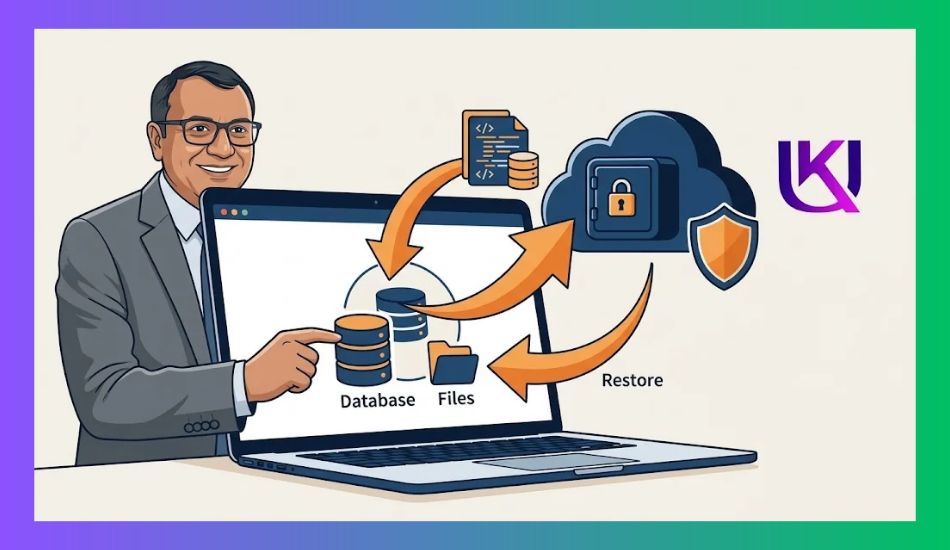
11. Secure Your WordPress Database
Your WordPress database stores important site data. This may include posts, user accounts, settings, and customer details. If an attacker gains access, they may steal or change this information.
Follow these steps to reduce the risk.
- Use a strong database password.
- Keep database access limited to trusted users and services.
- Use a database user with only the permissions WordPress needs.
- Keep your database software updated through your hosting provider.
- Back up your database on a regular schedule.
- Never share database credentials in public files or support forums.
Should you change the WordPress database table prefix?
WordPress uses wp_ as its default database table prefix. Changing it may stop some simple automated attacks, but it is not a strong security measure on its own.
Focus first on database access, updates, strong passwords, and safe backups. Do not change the prefix on a live site without a tested backup and a clear migration plan.
12. Add Security Headers and Browser Protection
Security headers tell a visitor’s browser how to handle certain types of content. The right settings can reduce some risks, such as clickjacking and unsafe content loading.
Check these items:
- Enable HSTS after confirming that HTTPS works across your site.
- Set an appropriate X-Content-Type-Options header.
- Use a suitable Content-Security-Policy where practical.
- Set a suitable Referrer-Policy.
- Review framing rules to reduce clickjacking risks.
- Test your site after changing headers.
Important: Do not copy security headers from another site without checking your own setup. A strict Content Security Policy can break scripts, forms, payment tools, and other features.
For a business site or online store, ask your developer to test these settings on a staging site first.
13. Remove Unused WordPress Themes and Plugins
Every plugin or theme adds code to your website. Old or abandoned software may contain security flaws that never receive a fix.
Use this checklist:
- Delete themes you no longer need, keeping a suitable default theme if practical.
- Delete inactive plugins you do not plan to use.
- Check when each plugin was last updated.
- Review the developer’s support and security history.
- Replace tools that no longer receive security fixes.
- Avoid installing plugins from unknown websites.
Expert tip: Do not judge a plugin by its download count alone. Check whether it meets your needs, works with your WordPress version, and has a good record of maintenance and support.
14. Check Your Site for Malware and Suspicious Changes
A hacked website may not show obvious signs at first. Attackers can add harmful code, create hidden admin accounts, or change files without your knowledge.
Check your site regularly for warning signs.
- Run a malware scan with a trusted security tool.
- Review unknown administrator accounts.
- Check for unfamiliar plugins and themes.
- Review unexpected redirects and pop-ups.
- Look for unusual changes to important files.
- Check hosting logs for suspicious activity.
- Review Google Search Console for security issues and hacked-content warnings.
What if you find malware?
Do not assume that deleting one suspicious file will fix everything. Attackers may leave other access points behind.
Instead:
- Contact your hosting provider or a trusted WordPress security expert.
- Preserve useful logs and evidence.
- Clean the site using a reliable recovery process.
- Update affected software and remove the original weakness.
- Change passwords and revoke compromised access.
- Restore a clean backup if needed.
- Check the site again after cleanup.
If your site handles customer or payment data, follow the relevant reporting and notification rules for your location and business.
15. Protect Contact Forms and User Input
Contact forms, search boxes, comment fields, and registration pages accept information from visitors. Poorly protected forms can attract spam and may expose security flaws.
Follow these steps:
- Keep form plugins updated.
- Use CAPTCHA or other bot protection where needed.
- Limit public registration if your site does not need it.
- Review who can submit files through your forms.
- Restrict file types and sizes for uploads.
- Collect only the personal data your business needs.
- Use HTTPS on pages that collect personal details.
Expert tip: If visitors can upload files, make sure the system checks allowed file types and does not let uploaded files run as code. This is especially important for membership sites and business portals.
16. Review WordPress REST API and XML-RPC Access
WordPress includes features that let apps and other services connect to your site. Two examples are the REST API and XML-RPC.
These tools are useful. But you should check how your site uses them and protect any access that is not needed.
Your API Security Checklist
- Review which plugins and apps use the WordPress REST API.
- Check for public access to sensitive data.
- Keep authentication methods and connected apps updated.
- Remove old integrations you no longer use.
- Test access rules before blocking API routes.
Should you disable the REST API?
No, not by default. WordPress and many plugins rely on it. Blocking it without checking its use can break site features.
What About XML-RPC?
XML-RPC lets external tools connect to WordPress. Some sites still need it, while others do not.
- Check whether your site uses XML-RPC.
- Disable it if you do not need it, and your setup allows this safely.
- Use a firewall or other controls to limit unwanted requests.
- Test connected apps before making changes.
Expert tip: Do not block a feature just because it can be abused. First check whether your site needs it. Then use the safest rule that fits your setup.
17. Control Spam Comments and User Registration
Spam can fill your comments, forms, and user lists with harmful links or fake accounts. It can also waste your time and make your site look less trustworthy.
Use this checklist:
- Turn on comment moderation.
- Use a trusted anti-spam tool.
- Remove spam comments and suspicious links.
- Disable public registration if you do not need it.
- Review new user accounts.
- Protect registration and login forms against bots.
If you run a membership site, do not disable registration without checking how your users sign up. Use suitable access controls instead.
18. Protect Your WordPress Email Delivery
Your site may send password reset links, order notices, form replies, and account alerts. If email delivery fails, users may lose access or miss important messages.
Email security also matters because attackers may try to impersonate your business.
Follow these steps:
- Use a trusted email service for website messages.
- Set up SPF, DKIM, and DMARC for your sending domain.
- Protect the email account linked to your WordPress administrator.
- Review unexpected password reset and account alert emails.
- Test important emails after changing your email settings.
Why do SPF, DKIM, and DMARC matter?
These email settings help other mail servers check whether messages claiming to come from your domain are allowed and properly authenticated. They can reduce some forms of email spoofing, but they do not stop every phishing attempt.
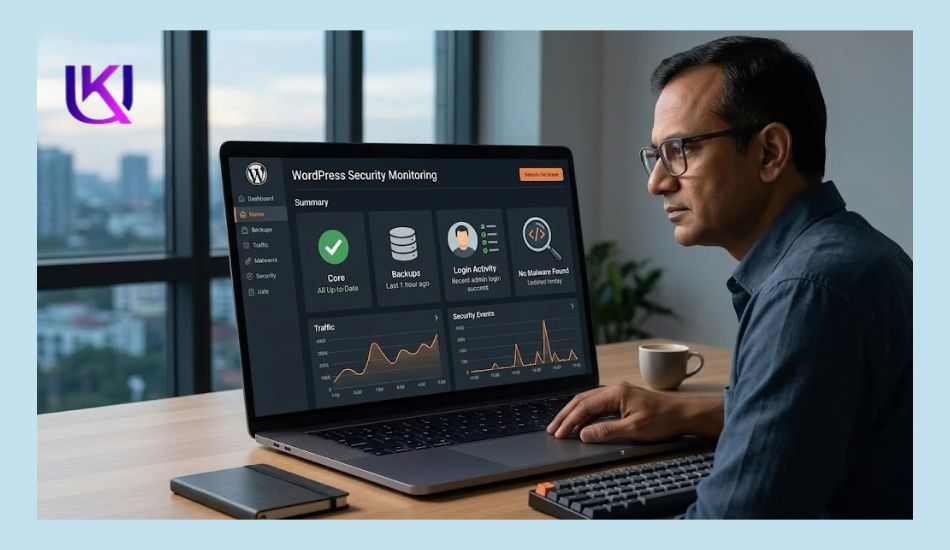
How to Set Up a WordPress Security Monitoring Plan?
Security is not a one-time task. New software flaws appear, staff access changes, and website settings can break after updates.
A simple review plan helps you catch problems before they grow.
| How often | What to check |
| Daily or automated | Backup status, security alerts, uptime, and critical errors |
| Weekly | Updates, failed login activity, and suspicious user accounts |
| Monthly | Plugins, themes, user permissions, and hosting security |
| Every few months | Restore tests, recovery steps, and security settings |
| After a major change | Site access, forms, checkout, backups, and key features |
The right schedule depends on your site’s size and risk. A busy online store needs closer monitoring than a small personal blog.
Expert tip: Automate routine checks where possible, but do not ignore alerts. A backup report is useful only if you know the backup completed and can restore it.
How to Create a WordPress Incident Recovery Plan
Even a well-protected website can be hacked. A recovery plan helps you act quickly and avoid making the problem worse.
Keep these steps ready before an incident happens.
- Save your hosting provider’s emergency contact details.
- Keep clean backups outside your main hosting account.
- Know how to put your site into maintenance mode if needed.
- Keep a list of important plugins, integrations, and services.
- Know how to revoke user sessions and change compromised passwords.
- Record how to restore your site from a clean backup.
- Keep a copy of key recovery steps somewhere safe.
What Should You Do If Your WordPress Site Is Hacked?
- Contact your hosting provider: Ask for help checking the server and containing the attack.
- Limit further damage: Restrict access or take the site offline if necessary.
- Protect your accounts: Use a clean device to change compromised passwords and secure your email, hosting, and domain accounts.
- Find the cause: Review logs, suspicious files, accounts, and outdated software.
- Clean or restore the site: Use a trusted recovery process and a known-clean backup.
- Fix the weakness: Update software, remove unsafe access, and close the entry point.
- Check everything again: Test the site, scan for remaining threats, and monitor for repeat attacks.
If your site stores sensitive customer data, assess whether the incident requires legal or regulatory notification.
Common WordPress Security Mistakes You Should Avoid
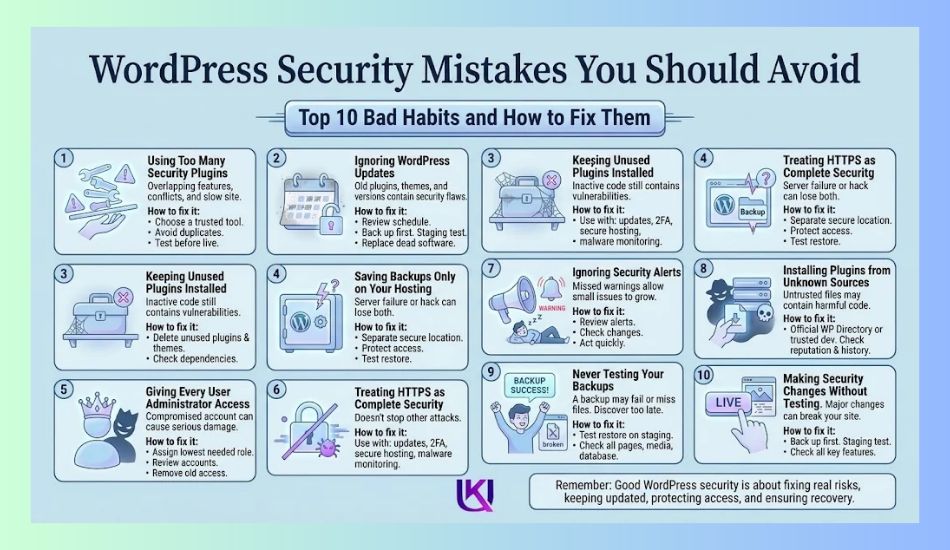
Even if you follow a WordPress Security Checklist, a few bad habits can leave your website open to attacks. A security plugin alone cannot fix every problem. You also need safe settings, good account habits, and regular checks.
Here are the most common mistakes and how you can fix them.
1. Using Too Many Security Plugins
Installing several security plugins may seem like a good way to protect your site. But some tools have overlapping features. They may conflict, slow down your site, or make problems harder to find.
How to fix it:
- Choose a trusted security tool that meets your needs.
- Avoid running duplicate firewall or scanning features without a clear reason.
- Test changes before applying them to your live site.
2. Ignoring WordPress Updates
Old plugins, themes, and WordPress versions may contain known security flaws. Delaying updates for too long can leave those flaws open to attack.
How to fix it:
- Review updates on a regular schedule.
- Back up your site before major changes.
- Test important updates on a staging site.
- Replace software that no longer receives security fixes.
3. Keeping Unused Plugins Installed
An inactive plugin may still contain vulnerable code. Leaving it on your site creates an extra risk without giving you any benefit.
How to fix it: Delete plugins and themes you no longer need. Before removing anything, check whether another part of your site depends on it.
4. Saving Backups Only on Your Hosting Account
If your hosting account is hacked or your server fails, your website and its backups may be lost together.
How to fix it: Keep a recent backup in a separate, secure location. Protect access to backup files and test that you can restore them.
5. Giving Every User Administrator Access
An administrator can make major changes to your site. If you give this role to every writer or contractor, one compromised account could cause serious damage.
How to fix it: Assign the lowest role each person needs. Review accounts often and remove access when a person no longer works on your site.
6. Treating HTTPS as Complete Website Security
HTTPS helps protect data sent between your site and its visitors. But it does not stop weak passwords, malware, unsafe plugins, or every type of attack.
How to fix it: Use HTTPS along with updates, 2FA, secure hosting, regular backups, and malware monitoring.
7. Ignoring Security Alerts
A warning about a vulnerable plugin, an unknown admin account, or a failed backup may point to a real problem. Ignoring these alerts can allow a small issue to grow.
How to fix it: Review alerts from your security tools and hosting provider. Check unexpected changes and act on confirmed threats quickly.
8. Installing Plugins from Unknown Sources
Untrusted plugin files may contain harmful code. A low price or a promise of premium features is not proof that a download is safe.
How to fix it: Download plugins from the official WordPress Plugin Directory or a trusted developer. Check their update history, support, and reputation before installing them.
9. Never Test Your Backups
A backup may fail, miss important files, or contain damaged data. You may not discover the problem until you need to restore your site.
How to fix it: Test a restore on a staging site. Check that your pages, media, settings, and database work as expected.
10. Making Security Changes Without Testing
Blocking the wrong API route, changing file permissions, or adding strict security headers can break your website.
How to fix it: Back up your site first. Test major changes on a staging site, then check forms, login pages, checkout, and other key features.
Focus on: Good WordPress security is not about installing the most tools. It is about fixing real risks, keeping your site updated, protecting access, and making sure you can recover if something goes wrong.
Best WordPress Security Tools for Your Website
The right WordPress security tools can help you block attacks, find malware, and protect your website backups. But you do not need to install every tool you find.
Start with your site’s needs. A small blog may need basic login protection and reliable backups. A business website may need a firewall and malware scans. An online store also needs strong account security and a safe recovery plan.
1. WordPress Security Plugins
These plugins offer features such as malware scanning, login protection, firewalls, and security alerts. Features vary by plugin and plan.
A. Wordfence Security: A useful option if you want a WordPress firewall, malware scanning, and login protection in one plugin.
Best for: Blogs and business websites.
B. Solid Security: Helps you manage login protection, two-factor authentication, and other security measures.
Best for: Site owners who want stronger account security.
C. Sucuri Security: Offers security activity logs, file integrity checks, remote malware scanning, and hardening features. Its website firewall is a separate service.
Best for: Site owners who want security monitoring and hardening.
2. WordPress Backup Tools
A security plan is incomplete without a reliable way to restore your website.
UpdraftPlus: Lets you schedule backups of your WordPress files and database and restore them when needed.
You can also use backups provided by your hosting company. If you choose, keep a copy outside your main hosting account and test the restore process.
3. Which Security Setup Should You Choose?
| Website type | Recommended starting setup |
| Personal blog | Updates, 2FA, backups, and a security scanner |
| Small business site | Firewall, malware monitoring, backups, and limited user access |
| WooCommerce store | Strong account protection, firewall, frequent backups, and tested recovery |
| Membership website | 2FA, controlled user roles, login protection, and monitoring |
These are starting points, not guarantees. Your final setup should match your hosting environment, site features, and level of risk.
Important: Avoid installing several plugins that do the same job. Check your hosting provider’s existing security features first. Test new tools before using them on a live business site.
How to Check Your WordPress Security Step by Step
You do not need advanced technical skills to start checking your WordPress security. Follow these steps to find common risks, fix simple problems, and decide when you need help from a developer.
Step 1: Check Your WordPress Dashboard
Log in to your WordPress admin area. Open Dashboard → Updates to review available updates.
- Check your WordPress version.
- Update supported WordPress core, themes, and plugins.
- Remove software you no longer use.
- Check for update errors or warnings.
Before major updates, create a backup. If you run a busy online store, test important changes on a staging site first.
Step 2: Review User Accounts
Open Users → All Users in your WordPress dashboard.
- Look for unknown accounts.
- Check who has the Administrator role.
- Remove access you no longer need.
- Enable two-factor authentication for privileged accounts.
- Ask team members to use unique passwords.
Do not delete an unfamiliar account until you confirm what it does. It may belong to a trusted developer or a service you use.
Step 3: Test Your Website Backups
Open your backup plugin or hosting control panel.
- Confirm that automatic backups are running.
- Check the date of your latest successful backup.
- Make sure both website files and the database are included.
- Confirm that at least one copy is stored outside your main hosting account.
- Test a restore on a staging site.
A backup report alone is not enough. You need to know that the backup can restore your website.
Step 4: Run a Security Scan
Use a trusted WordPress security tool or a service provided by your host.
- Run a malware scan.
- Review any detected threats.
- Check for unexpected file changes.
- Review failed login attempts.
- Check for security warnings in Google Search Console.
A scan may miss some threats, so do not treat a clean report as proof that your website is completely safe.
Step 5: Check HTTPS and Your Login Page
Open your website in a browser and review the address bar.
- Confirm that your site uses HTTPS.
- Check for browser security warnings.
- Test your login page.
- Confirm that 2FA works for protected accounts.
- Check that forms and checkout pages still work.
Do not test security by attacking your own live website with aggressive tools. Use safe checks or a controlled test environment.
Step 6: Review Your Hosting Security
Sign in to your hosting control panel.
- Enable 2FA if available.
- Review hosting users and access permissions.
- Check backup and malware protection options.
- Confirm that your server software receives security updates.
- Remove old access accounts.
- Protect your domain registrar account.
If you cannot find a setting, ask your hosting provider where it is and whether it is already enabled.
Step 7: Fix the Highest-Risk Problems First
You may find several issues during your review. You do not need to fix everything at once.
Use this order:
| Priority | What to fix |
| Critical | Confirmed malware, compromised accounts, or exposed sensitive data |
| High | Known vulnerable software, weak privileged accounts, or failed backups |
| Medium | Unused plugins, excessive user access, or missing security alerts |
| Routine | Regular updates, access reviews, and restore tests |
This is a practical starting order, not a formal risk rating. A flaw that exposes customer data may need immediate action even if it appears in a routine scan.
Important: If your site is already hacked, do not rely on this checklist alone. Contact your host or a qualified WordPress security expert and follow a proper cleanup process.
How Often Should You Review WordPress Security?
Your review schedule should match how often your site changes and how much risk it carries.
| Task | Suggested schedule |
| Check critical security alerts | Daily or through automatic monitoring |
| Confirm backups are running | Daily or according to your backup plan |
| Review updates | Weekly, or sooner for urgent security fixes |
| Review users and permissions | Monthly and whenever staff changes |
| Test website restoration | Every few months and after major changes |
| Review the full checklist | Monthly or after major site changes |
If you run a WooCommerce store or a site that handles sensitive data, you may need more frequent checks.
FAQs: 18 Steps WordPress Security Checklist Beginner’s Guide
1. Is WordPress secure for business websites?
Yes. WordPress can be secure when you keep it updated, use trusted plugins, protect accounts, and maintain reliable backups. Your hosting setup and daily security practices also matter.
2. What is the most important WordPress security step?
Start by protecting administrator accounts with strong, unique passwords and 2FA. Then confirm that your website has working backups and receives security updates.
3. Do I need a WordPress security plugin?
Not always. Some hosting providers include firewalls, malware scanning, and other protections. A security plugin may add useful features, but you should check what your host already provides.
4. How often should I back up my WordPress site?
It depends on how often your site changes. A simple blog may need less frequent database backups than a busy online store. Choose a schedule that lets you recover important changes and customer orders.
5. Can I secure WordPress without coding?
Yes. You can handle many tasks through your WordPress dashboard, hosting panel, and trusted security tools. For complex changes to file permissions, server rules, or security headers, ask a qualified developer for help.
6. What should I do if my WordPress website is hacked?
Contact your hosting provider or a WordPress security expert. Contain the attack, protect compromised accounts, find the cause, and clean or restore the site using a trusted process. Then fix the weakness that allowed the attack.
7. Does changing the WordPress login URL stop hackers?
No. It may reduce some unwanted login traffic, but it cannot stop every attack. Use 2FA, strong passwords, suitable rate limits, and a firewall where appropriate.
8. Is HTTPS enough to protect my WordPress website?
No. HTTPS protects data in transit, but it does not remove malware or fix weak passwords, outdated plugins, or unsafe server settings. You need several layers of protection.
Conclusion: Keep Your WordPress Website Safe
Your WordPress website needs regular care to stay secure. Start with the basics: update your software, protect administrator accounts, set up reliable backups, and check for security warnings.
Then review your hosting, plugins, database, and user permissions. Fix the biggest risks first. Test your backups so you know you can recover if something goes wrong.
If you manage a business website or online store, do not wait for a hack to check your security. Use this checklist as part of your regular site maintenance.
Need help securing your WordPress website? UK Deb can help you review common security gaps, improve WordPress settings, and build a practical maintenance plan. Contact UK Deb to discuss your website’s needs.
Sources and Further Reading
- Patchstack, State of WordPress Security in 2026
- WordPress.org, Hardening WordPress (Advanced Administration Handbook)
- Developer.WordPress.org, security and file editing documentation
1 thought on “The WordPress Security Checklist Every Site Owner Needs”
Pingback: How to Do Guest Posting for SEO: A Beginners Practical Guide