

Google Search Console beginners often ask the same question: “Why is my website not getting traffic from Google?”
You just launched your website. You feel excited. But then one big question hits you: Is Google even seeing my site?
You publish content. You wait for visitors. But weeks later, nothing seems to happen.
The problem is not always your content. Sometimes you simply cannot see what Google sees.
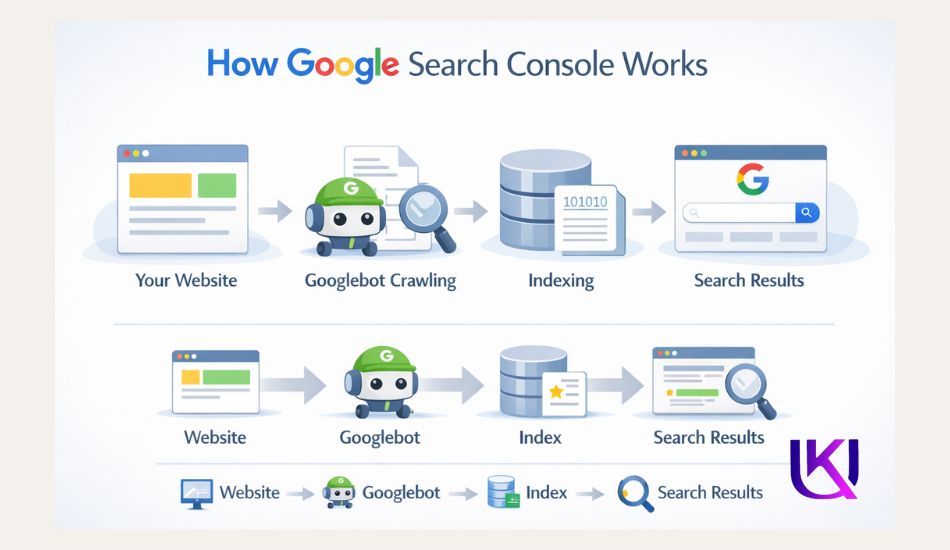
A beginner often thinks Google is ignoring their website. The truth is that Google may already be crawling and indexing pages, but without Google Search Console (GSC), you cannot see what is happening behind the scenes.
For SEO beginners, it acts like a direct communication channel between your website and Google Search, making technical SEO much easier to understand.
That is exactly where Google Search Console comes in.
Most beginners skip this tool. That is a mistake. Google Search Console shows you what Google thinks about your website. Not what you think. What Google thinks. And that difference? It changes everything.
You do not need to be a developer to use it. You do not need to understand code. You need seven days and this guide.
Let us get started.

What Is Google Search Console?
Google Search Console is a free tool from Google that helps you monitor, maintain, and improve your website’s presence in Google Search.
Think of it as a dashboard that shows how Google sees your website.
Many website owners create content without knowing whether Google can find, crawl, or index their pages. GSC solves that problem by giving you direct access to important website data.
Inside the platform, you can see:
- Which keywords do people use to find your website
- How many clicks and impressions your pages receive
- Your average ranking position in search results
- Whether your pages are indexed by Google
- Technical SEO issues that may affect visibility
- Core Web Vitals and page experience reports
- Mobile usability problems
- Crawl errors that prevent pages from appearing in search
One of the most useful features is the Search Performance Report. It shows which search queries bring traffic to your site and which pages perform best. This helps you find content opportunities and improve existing pages.
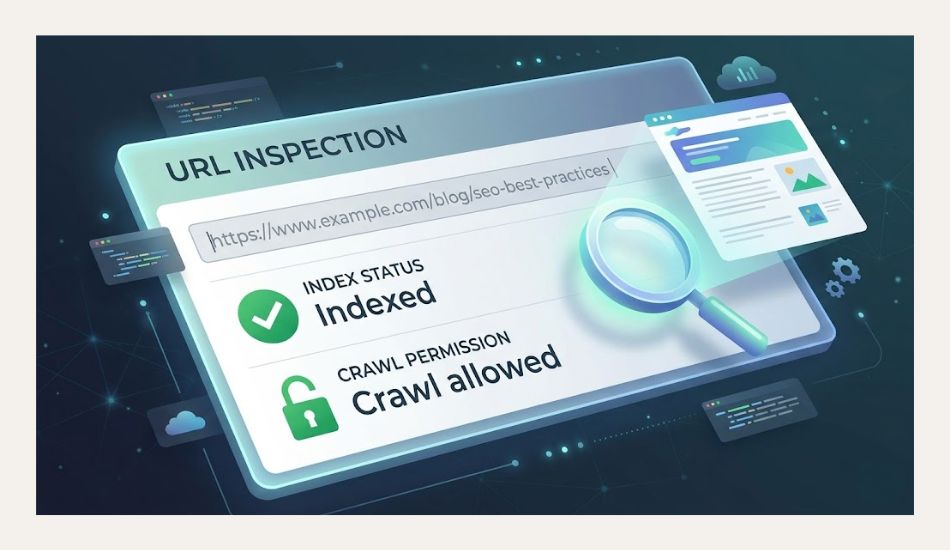
Another important feature is the URL Inspection Tool. It allows you to check whether a page is in the Google index and identify issues that may stop it from ranking.
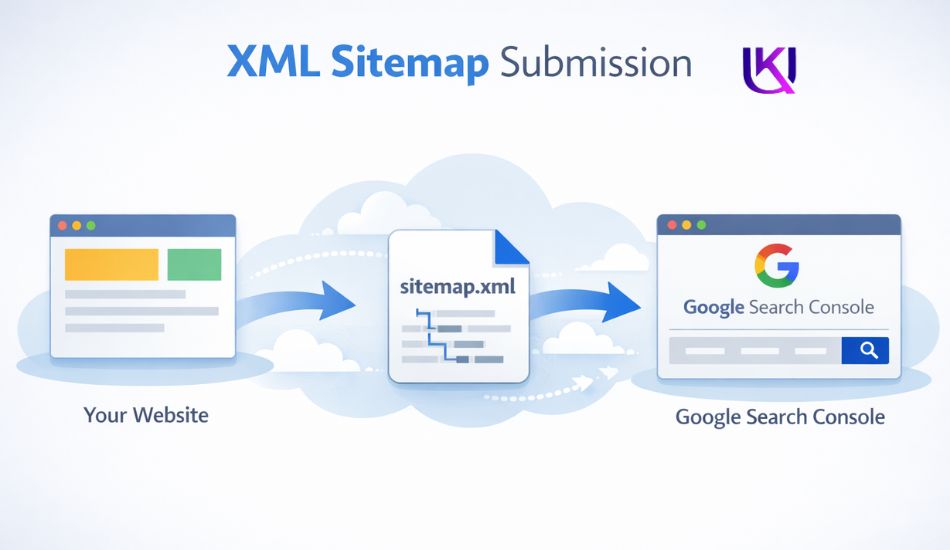
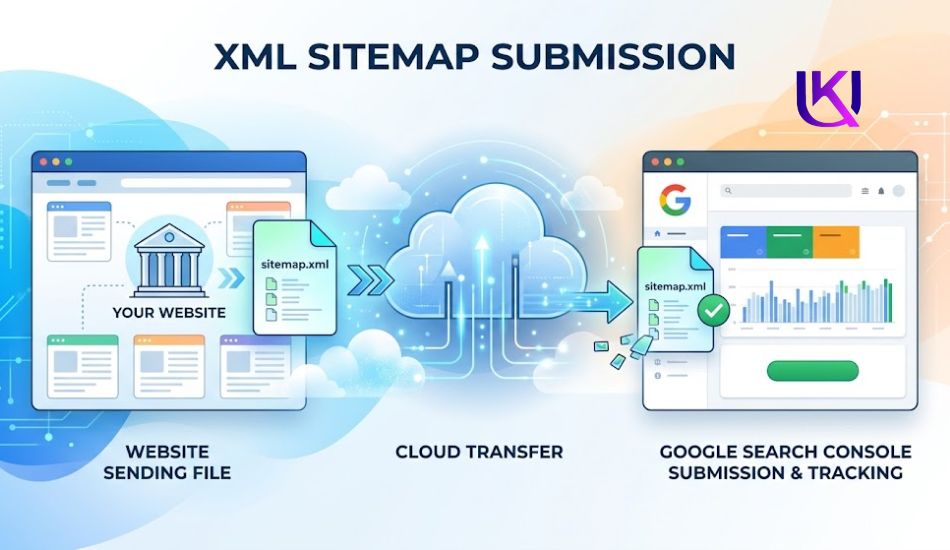
Google Search Console (GSC) also lets you submit an XML sitemap. A sitemap helps Googlebot discover your pages more efficiently, which can speed up indexing for new content.
The best part is that you do not need to be an SEO expert to use it. If you run a blog, business website, online store, or portfolio, GSC gives you valuable insights that help you understand your website’s health and search visibility.
Simply put, if Google Search is where people find your website, Google Search Console is where you learn how to improve your results.

Google Search Console Beginners: Why Should You Care?
GSC is a free tool from Google. It sits between your website and Google’s search engine. It tells you what is working and what is broken.
Here is what it does for you:
- It shows you which keywords bring people to your site
- It tells you how many people see and click your pages on Google
- GSC finds errors that stop Google from reading your site
- It lets you request that Google index your new pages faster
You do not need GSC to show up on Google. Your site can rank without it. But here is the thing, and without it, you are flying blind.
You have no idea what is working, what is broken, or what keywords are actually sending you traffic.
Think of it this way. Google Search Console is like the dashboard in your car. Your car runs without a dashboard. But you would never know if you are running out of fuel, going too fast, or if the engine is failing. The dashboard tells you the truth about what is happening under the hood.
Google Search Console does the same for your website.

Google Search Console(GSC) Beginners Set-Up: First Week Success Roadmap
Before you start need to set up Gmail with your search console.
A beginner often thinks Google is ignoring their website. The truth is that Google may already be crawling and indexing pages, but without Google Search Console, you cannot see what is happening behind the scenes.
This free Google tool helps website owners monitor search traffic, discover search queries that bring impressions and clicks, check indexing status, submit an XML sitemap, inspect URLs, find crawl errors, track Core Web Vitals, and uncover ranking opportunities.
For SEO beginners, it acts like a direct communication channel between your website and Google Search, making technical SEO much easier to understand.

Day 1: Set Up Your Account (It Takes 10 Minutes)
The first thing you do is create your Google Search Console account. You need a Google account for this. If you use Gmail, you already have one.
- Go to search.google.com/search-console and click “Start now.” Sign in with your Google account.
- Next, Google asks you to add a property. A property is just your website. You will see two options:
- Domain: This covers your whole website, including all versions (http, https, www, non-www). This is the better option.
- URL Prefix: This only covers one specific version of your URL. Use this if you only want to track one section of your site.
- For most beginners, pick Domain.
- Then Google asks you to verify your site. Verification proves to Google that you actually own the website. You are not just pretending to be the owner.
- The easiest way to verify is through your domain registrar. Google will give you a DNS TXT record, a small piece of code. You paste it into your domain settings. Google checks it and confirms you are the owner.
If that sounds confusing, do not worry. Google gives you step-by-step instructions right inside the tool. Most domain registrars like GoDaddy, Namecheap, Hostinger, Bluehost, and Cloudflare also have their own guides for this exact step.
Once verified, Google Search Console (GSC) is ready. But it needs a day or two to collect data before you see anything useful. That is normal. Come back tomorrow.

Day 2: Understand the Dashboard Google Search Console (UGS) Beginners
You open Google Search Console for the first time, and you see numbers and graphs. It can feel like a lot. But you only need to pay attention to a few things right now.
Look at the left side menu. You will see these main sections:
- Overview: A quick summary of your site’s health and performance.
- Search results: This is the most important section. It shows you how your site performs on Google Search. You will come back here often.
- URL Inspection: This lets you check any single page on your site. You can see if Google has indexed it and what it found.
- Coverage: This shows which pages Google has indexed and which ones have errors.
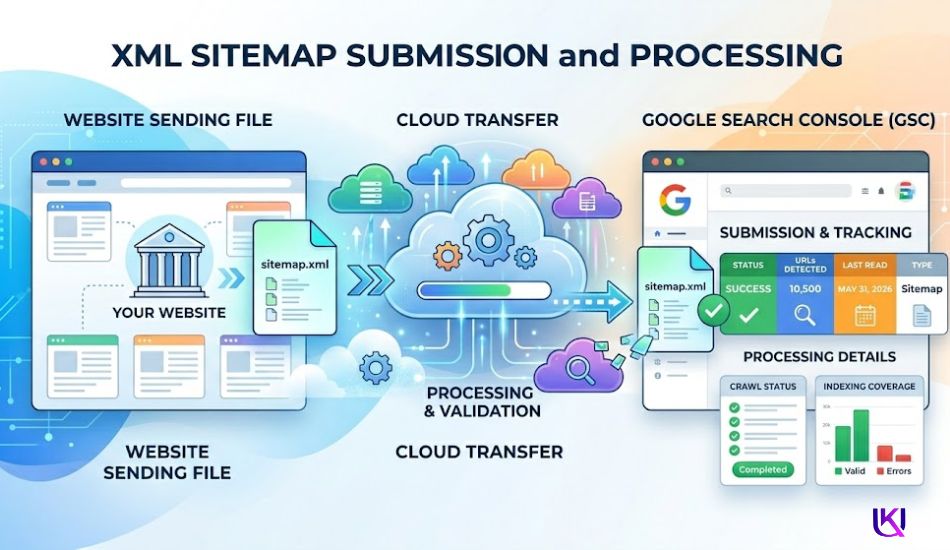
- Sitemaps: This is where you tell Google about all your pages at once.
- Core Web Vitals: This shows how fast and smooth your site feels for visitors.
You do not need to dig into all of these today. Just look around. Get familiar with where things are. The goal on Day 2 is to stop feeling lost.
Day 3: Submit Your Sitemap
A sitemap is a file that lists every page on your website. It helps Google find and understand your content faster.
Most website builders create a sitemap for you automatically. If you use WordPress, plugins like Yoast SEO or Rank Math generate your sitemap. Your sitemap URL usually looks like this: yourwebsite.com/sitemap.xml
Type that in your browser. If you see a list of your pages, your sitemap exists. If you see a blank page or an error, you may need to generate one through your SEO plugin settings.
Once you have your sitemap URL, go to Google Search Console. Click on Sitemaps in the left menu. Type your sitemap URL into the box and click Submit.
That is it. Google now knows where to look. It will start crawling your pages more efficiently.
Submitting your sitemap does not guarantee instant indexing. Google still decides what to index and when. But it speeds up the process and removes any guesswork on Google’s end.
Day 4: Check Your Search Performance
This is the part where things get exciting.
Click on Search results in the left menu. You will see a graph and four key numbers at the top:
- Total clicks: How many times people clicked your site in Google Search results.
- Total impressions: How many times your site appeared in Google Search results. Even if no one clicked.
- Average CTR: Click-through rate. The percentage of people who saw your site on Google and then clicked on it.
- Average position: Where your site ranks on average. Position 1 is the top result. Position 10 is the bottom of page one.
Below the graph, you will see a table. This table shows you the actual search queries that people typed into Google before finding your site.
This data is gold.
You will find keywords you never even targeted. You will see which pages attract the most clicks. You will spot pages that get lots of impressions but very few clicks, which means people see your page but do not find the title or description interesting enough to click.
If your site is brand new, you might see very little data. That is okay. The data builds over time. Check back in a week, and you will see more.
One important thing to know: Google Search Console only shows the last 16 months of data. It does not go further back. So start paying attention now. The data you collect today is data you will not lose.
Day 5: Find and Fix Coverage Errors
Go to Coverage in the left menu. This section shows you the health of your indexed pages.
You will see four categories:
- Error: Pages Google tried to visit but could not. These need your attention first.
- Valid with warnings: Pages that are indexed but have some problems.
- Valid: Pages that are working perfectly fine.
- Excluded: Pages that Google chose not to index. This is not always a problem. Some pages should not be indexed.
If you see errors, click on them. Google will explain what the error is. Common errors you might see as a beginner:
- 404 Not Found: A page that used to exist but is now gone. If you deleted a page, Google still tries to visit it. You can either redirect it to a new page or ignore it if it is not important.
- Redirect Error: Something went wrong during a page redirect. Your web developer or SEO plugin can fix this.
- Blocked by robots.txt: A file on your site called robots.txt is telling Google not to visit certain pages. Sometimes this happens by accident. Check your robots.txt to make sure you are not blocking your own important pages.
You do not need to fix everything on Day 5. Start with the biggest errors. The ones affecting your most important pages.
Day 6: Use the URL Inspection Tool
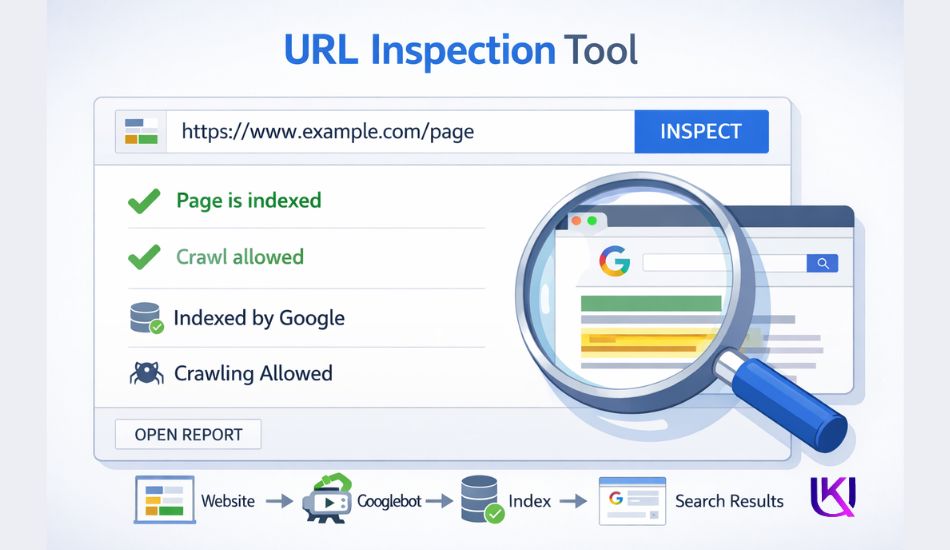
The URL Inspection tool is one of the most useful features in Google Search Console. Many beginners never discover it.
Here is how it works. Click URL Inspection in the left menu. Type in any page URL from your website. Hit Enter.
Google will tell you:
- Whether that page is indexed or not
- The last time Google crawled it
- What the page looked like to Google when it was crawled
- Any issues it found
If a page is not indexed, you can click Request Indexing. This tells Google’s bot to check that page right now. It is not instant, but Google usually processes the request within a few days.
This tool is especially helpful when you publish new content. After you publish a new blog post or page, go to URL Inspection, type in the URL, and request indexing. You will get that page into Google’s system much faster than waiting for Google to find it on its own.

Day 7: Look at Core Web Vitals
On your last day of setup, take a look at Core Web Vitals. This section shows how your pages perform for real users.
Google uses three main measurements here:
- LCP (Largest Contentful Paint): How fast the biggest piece of content on your page loads. Google wants this under 2.5 seconds.
- FID (First Input Delay) / INP (Interaction to Next Paint): How fast your page responds when someone clicks or taps something. Google wants this very fast.
- CLS (Cumulative Layout Shift): How much your page jumps around while loading. You know when you go to click something and then the page shifts, and you click the wrong thing? That is CLS. Google wants this very low.
If your pages show as Poor or Needs Improvement, that is something to work on over time. These are technical fixes. You may need your developer’s help or a page speed plugin.
But even just knowing your score puts you ahead of most beginners. Most website owners never look at this data at all.

What Happens After Day 7?
You are not done after seven days. Google Search Console (GSC) is a tool you check regularly. Once a week is a good habit for beginners.
Here is a simple weekly routine:
- Check your top-performing pages in Search results
- Look for new keywords driving traffic
- Review any new coverage errors
- Inspect the new pages you published that week
- Monitor your Core Web Vitals score over time
As your site grows, the data gets richer. You will start spotting patterns. You will know which topics attract more clicks. You will find pages sitting at position 8 or 9 that need a small update to jump to page one.
That kind of insight only comes from consistent attention. Google Search Console makes that possible for free.

5 Things Beginners Get Wrong in Google Search Console
1. Not verifying the correct version of their site. Make sure you verify the version your site actually uses, https or http, www or non-www. Most modern sites use https without www.
2. Ignoring the Search results tab. This is the most important section. Do not skip it. Your keywords are hiding in there.
3. Panicking over excluded pages. Not every excluded page is a problem. Blog tag pages, archive pages, and pagination pages are often excluded on purpose. Look at the reason Google gives before worrying.
4. Expecting instant results. Google Search Console shows data with a delay. Search results data can be two to three days behind. Do not make decisions based on a single day of data.
5. Setting it up and never coming back. The whole value of Google Search Console is in watching your data over time. A one-time setup does nothing for you if you never check back.

9 Most Common Beginner Mistakes to Avoid
Google Search Console is easy to use, but many beginners make mistakes that stop them from getting the full value from the tool. The good news is that most of these mistakes are simple to fix.
1. Checking Data Too Often
Many new users open Google Search Console every day and worry when they do not see immediate results.
SEO takes time. New pages may need days or even weeks to gain impressions, clicks, and rankings. Instead of checking every hour, review your data regularly and look for long-term trends.
2. Ignoring Indexing Issues
Some beginners focus only on traffic numbers and forget to check whether their pages are actually indexed.
If a page is not in the Google index, it cannot appear in search results. Use the URL Inspection Tool to confirm that important pages can be crawled and indexed.
3. Forgetting to Submit a Sitemap
A sitemap helps Google discover your content more efficiently.
Many website owners publish pages but never submit an XML sitemap. This can slow down the indexing process, especially for new websites.
4. Looking Only at Clicks
Clicks are important, but they do not tell the whole story.
Pay attention to impressions, average position, and click-through rate (CTR) as well. A page with many impressions but few clicks may need a better title or meta description.
5. Panicking Over Every Error
Seeing warnings or errors can be stressful for beginners.
Not every issue is urgent. Some reports contain minor warnings that may not affect rankings. Focus first on important problems such as indexing errors, crawl issues, and poor Core Web Vitals.
6. Ignoring Mobile Usability
Most searches now happen on mobile devices.
If your website is difficult to use on a phone, visitors may leave quickly. Regularly review mobile usability reports and fix problems that affect the user experience.
7. Not Using Search Query Data
One of the biggest mistakes is ignoring the keywords already bringing visibility to your website.
The Search Performance Report shows the search queries people use to find your pages. This information can help you create better content, update older articles, and find new ranking opportunities.
8. Expecting Instant Rankings
Google Search Console is a powerful SEO tool, but it is not a magic button.
Submitting a sitemap, fixing errors, and publishing content will not produce overnight results. Consistent improvements over time are what lead to better search visibility and organic traffic.
9. The Simple Rule to Remember
Do not use Google Search Console only when something goes wrong. Use it as a regular website health check.
The more you understand your search performance, indexing status, and technical SEO issues, the easier it becomes to grow your website and make smarter SEO decisions.

What Happens After Your First Week?
By the end of your first seven days with Google Search Console, you will have a much clearer picture of how your website performs in Google Search.
You may not see a huge jump in rankings yet, but you will have something even more valuable: real data.
Instead of guessing what is happening, you can now see:
- Which pages are indexed
- Which keywords generate impressions
- How many clicks do your pages receive
- Which pages perform best
- Technical SEO issues that need attention
- Opportunities to improve search visibility
This information helps you make smarter decisions about your content and SEO strategy.
1. You Start Finding Easy Wins
Many beginners discover pages that already rank on the second or third page of Google.
These pages often need only small improvements, such as better content, stronger headings, updated information, or a more compelling title tag. Small changes can sometimes lead to noticeable ranking gains.
2. You Understand What Your Audience Searches For
The Search Performance Report reveals the actual search queries people use to find your website.
This removes much of the guesswork from content planning. Instead of writing topics based on assumptions, you can create content around real user searches.
3. You Catch Problems Earlier
Google Search Console acts as an early warning system for your website.
You can quickly spot indexing problems, crawl errors, mobile usability issues, or Core Web Vitals concerns before they affect your traffic.

You Build Better SEO Habits
Successful SEO is not about checking rankings every day.
It is about reviewing data, making improvements, and tracking progress over time. After your first week, you will have a routine that helps you monitor your website with confidence.
The Real Benefit
The biggest change is not higher rankings overnight. It is gaining visibility into how Google views your website.
Once you understand your search performance, indexing status, and website health, you can make decisions based on facts instead of guesses. That is what turns a beginner into a more confident website owner.

Simple Search Console Habits That Improve SEO Over Time
You do not need to spend hours inside Google Search Console every day.
A few simple habits each week can help you spot problems early, find new opportunities, and steadily improve your website’s performance in Google Search.
1. Check Your Search Performance Once a Week
Open the Search Performance Report and review your clicks, impressions, average position, and click-through rate (CTR).
Look for pages that are gaining visibility and pages that may be losing traffic. This helps you understand what is working and where improvements are needed.
2. Watch for New Keyword Opportunities
Search Console often reveals keywords you did not expect to rank for.
If a page receives impressions for a relevant search query, consider expanding the content to better answer that topic. This can help you attract more organic traffic over time.
3. Monitor Indexing Status
Make it a habit to check that your important pages remain indexed.
If a valuable page suddenly drops out of the Google index, investigate the issue quickly using the URL Inspection Tool.
4. Review Coverage Reports
Coverage reports help you identify crawl errors and indexing problems.
Checking these reports regularly allows you to fix issues before they affect your visibility in search results.
5. Keep Your Sitemap Updated
Whenever you add significant new content, make sure your XML sitemap stays current.
A clean sitemap helps Google discover and crawl new pages more efficiently.
6. Pay Attention to Core Web Vitals
Website speed and user experience matter.
Review your Core Web Vitals reports from time to time. Improving page loading speed, visual stability, and responsiveness can create a better experience for visitors and support long-term SEO performance.
7. Update Older Content
One of the easiest ways to improve rankings is to refresh existing pages.
Use Search Console data to find pages with strong impressions but lower rankings. Updating these pages with better information, clearer answers, and fresh examples can help them perform better.
8. Track Progress Month by Month
SEO results rarely happen overnight.
Instead of focusing on daily changes, compare your performance month by month. This gives you a clearer view of growth and helps you avoid reacting to normal ranking fluctuations.
9. Build a Data-Driven SEO Routine
The most successful website owners do not guess what Google wants.
They use data to guide their decisions. By spending a few minutes each week in Google Search Console, you can make informed improvements, strengthen your technical SEO, and create content that better matches what users are searching for.
Over time, these small habits can lead to stronger rankings, better search visibility, and more consistent organic traffic.
You Are Already Ahead: Google Search Console Beginners Your First 7 Days Guide 2026.
Most website owners spend years without ever opening Google Search Console (GSC). They guess what is working. They wonder why their traffic is low. They never find the errors hiding on their site.
You are not going to do that.
You set up your account. You submitted your sitemap. You checked your keywords and your errors. You used the URL Inspection tool and looked at your Core Web Vitals.
Seven days. That is all it took to go from “I have no idea if Google sees my site” to “I know exactly what Google thinks about every page I publish.”
Keep checking it. Keep learning from the data. The more you use it, the more it gives back.
Google Search Console is a free tool from Google, no cost, no subscription, no catch. It is one of the most powerful free tools available to anyone with a website.
Get more relevant article: What Is an SEO Audit and Do You Really Need One in 2026

FAQs: Google Search Console Explained for Beginners Easy Guide.
1. Does Google Search Console cost money?
No. It is completely free. Google provides it to all website owners at no charge.
2. How long does verification take?
DNS verification can take up to 72 hours. Most times it is much faster, sometimes just a few minutes.
3. Can I use Google Search Console with any website?
Yes. It works with any website on any platform, WordPress, Shopify, Wix, Squarespace, custom-built sites, anything.
4. Will Google Search Console improve my rankings?
Not directly. The tool itself does not change your rankings. But the information it gives you helps you make smarter decisions that lead to better rankings over time.
5. What is the difference between Google Search Console and Google Analytics?
Google Analytics shows you what people do after they land on your website, how long they stay, what pages they visit, and where they came from. Google Search Console shows you what happens before they land, how you appear on Google, what keywords trigger your pages, and what errors exist. Both tools work better together.