

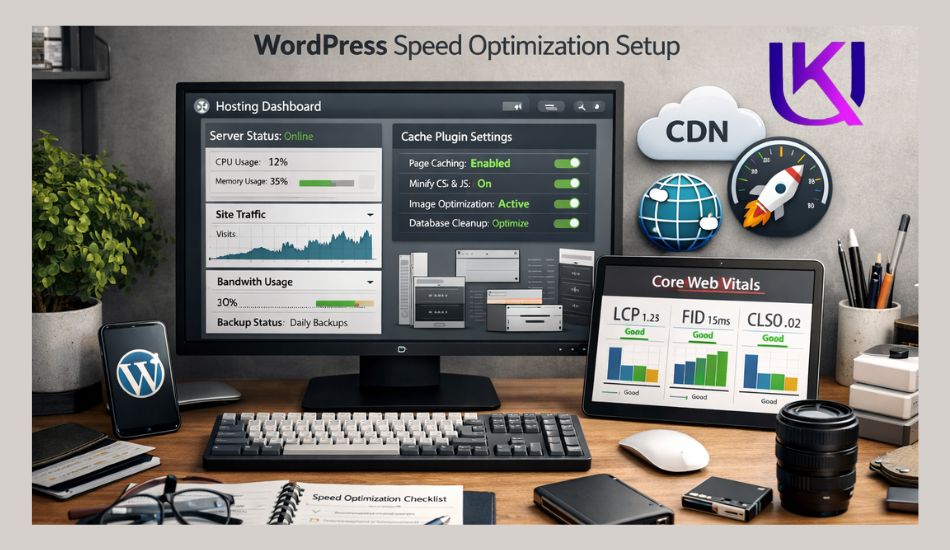
WordPress Speed Optimization is a process of minimizing the weight and optimizing how data travels from your server to the visitor.
A slow WordPress or other CMS or coding site can hurt your search engine rankings, sales, and user experience faster than most people realize.
Basically, a good website load time is under 2 seconds for your WordPress website.
If your webpages take more than a few seconds to load, visitors often leave before reading anything. That also sends poor engagement signals to Google.
In many client projects, the biggest problems usually come from cheap hosting, oversized images, too many plugins, and heavy page builders.
To fix the technical SEO services category, beginners need to understand, normally start with server-level caching using LiteSpeed Cache, image compression through ShortPixel, and a global CDN from Cloudflare.
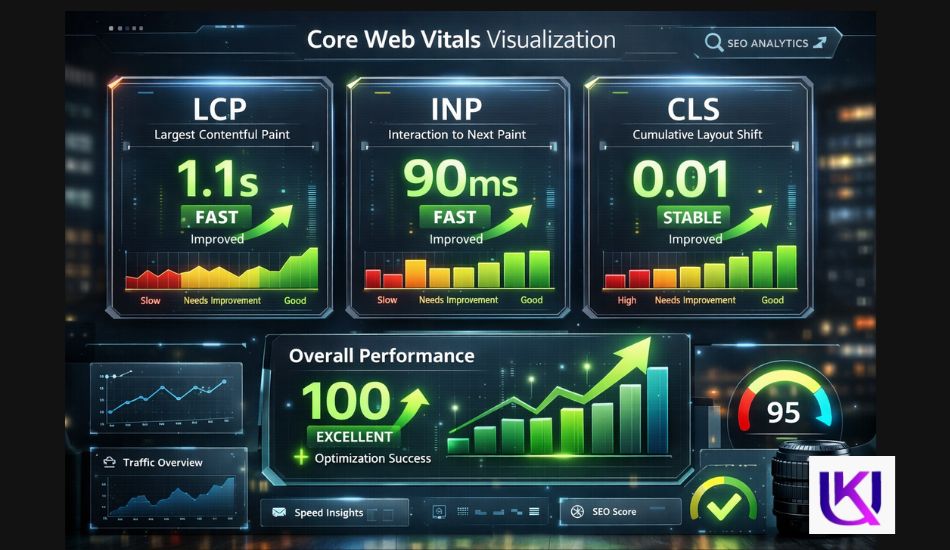
After the cleanup, I test everything again using Google PageSpeed Insights and GTmetrix to improve Core Web Vitals metrics such as LCP, CLS, and INP.
On most optimized websites, this setup dramatically reduces load time and creates a much smoother experience for mobile users.
Why Is Your WordPress Site So Slow?
You may feel frustrated when your website takes forever to open. Many WordPress site owners think the problem comes from one plugin or a bad internet connection. But in most cases, several small issues work together and make the site heavy.
You can fix most speed problems without rebuilding your whole website. Here are the biggest reasons a WordPress site becomes slow.
1. Cheap or Weak Hosting
Your hosting works like the engine of your website.
If the server is slow, your whole site becomes slow too. Many cheap shared hosting plans place hundreds of websites on one server. When those websites use too many resources, your site’s performance drops.
That usually causes:
- slow loading pages
- high server response time
- poor mobile performance
- lower Core Web Vitals scores
A fast hosting company with LiteSpeed servers, NVMe storage, and updated PHP versions can make a huge difference.
2. Large Images That Are Not Optimized
Big images are one of the most common speed problems. Many beginners upload photos directly from a phone or camera without resizing them first. A single large image can sometimes be bigger than the whole webpage.
Heavy images slow down:
- mobile loading
- page rendering
- scrolling speed
Using WebP images and compression tools helps reduce file size without hurting quality.
3. Too Many Plugins
Plugins add features, but too many plugins create extra work for your server.
Some plugins load:
- large CSS files
- heavy JavaScript
- extra database requests
That increases loading time on every page. In many client websites, removing unused plugins alone improves speed immediately.
4. Heavy WordPress Themes
Some themes look beautiful but contain:
- animations
- sliders
- visual effects
- large page builder files
These features often load many scripts in the background. Lightweight themes usually perform much better because they use cleaner code and fewer resources.
5. No Caching System
Without caching, your server rebuilds the page every time someone visits your site.
That process takes extra time and server power.
A cache plugin stores ready-made versions of your pages so visitors can open them much faster.
Popular tools like LiteSpeed Cache and WP Rocket help reduce loading time dramatically.
6. Too Many External Scripts
Many websites load extra files from:
- ads
- fonts
- tracking tools
- social media widgets
- chat systems
Every extra request adds more loading time. Even one slow external script can delay your entire page.
7. Poor Core Web Vitals
Google measures website experience using Core Web Vitals. Google PageSpeed Insights (PSI) is supported and powered primarily by Lighthouse for lab data and the Chrome User Experience Report (CrUX) for real-world field data. If your site has:
- Slow Largest Contentful Paint (LCP)
- Layout shifting (CLS)
- Delayed interaction speed (INP)
Your rankings and user experience can suffer. This is why speed optimization is no longer optional for modern WordPress websites.
8. Bloated Databases
Over time, your database collects:
- post revisions
- spam comments
- expired transients
- unused plugin data
A bloated database slows down page generation and backend performance. Regular cleanup helps your site stay fast and stable.
Most slow WordPress websites do not fail because of one huge problem. They become slow because many small problems stack together over time. Once you understand the real cause, fixing your website becomes much easier.

Which Hosting Makes Your WordPress Site Faster?
Many people try to fix a slow website by installing more plugins. But in reality, your hosting company controls the foundation of your website’s speed.
If the server is slow, even the best optimization plugins cannot fully fix the problem. That is why hosting is usually the first thing I check on client websites.
1. Why Hosting Matters So Much
Your hosting stores:
- website files
- images
- databases
- themes
- plugins
Every time someone visits your site, the server must process all that data quickly.
If the server struggles, visitors experience:
- slow loading pages
- laggy navigation
- delayed checkout pages
- poor mobile performance
This also affects Core Web Vitals and SEO performance.
2. Shared Hosting vs Fast Hosting
Many beginners start with cheap shared hosting because it costs less.
The problem is simple.
Shared hosting often places hundreds of websites on the same server. If one website uses too many resources, the other websites slow down too.
That usually creates:
- high server response times
- unstable performance
- traffic slowdowns
- random loading spikes
Fast WordPress hosting uses stronger hardware and better server optimization.

3. Look for LiteSpeed Servers
One of the biggest speed improvements comes from LiteSpeed servers.
LiteSpeed Technologies servers are built for high-performance websites and work especially well with WordPress.
Benefits include:
- faster page delivery
- improved caching
- lower server load
- better traffic handling
When combined with LiteSpeed Cache, websites often load much faster than standard Apache hosting.
4. NVMe Storage Helps Websites Load Faster
Storage speed also matters. Modern hosting companies use NVMe SSD storage instead of older hard drives.
NVMe storage helps:
- Databases respond faster
- Files load quicker
- Admin dashboards feel smoother
This becomes very important for:
- WooCommerce stores
- large blogs
- image-heavy websites
Updated PHP Versions Improve Performance
WordPress runs on PHP. Older PHP versions are slower and less secure.
Modern hosting providers usually support:
- PHP 8.1
- PHP 8.2
- PHP 8.3
Updated PHP versions improve:
- processing speed
- security
- plugin compatibility
Sometimes upgrading PHP alone improves website speed noticeably.
5. Server-Level Caching Is a Huge Advantage
Some premium hosting companies include server-level caching. This means the server itself handles caching before WordPress even loads fully.
That reduces:
- CPU usage
- database queries
- processing time
Server-level caching is often faster than relying only on plugins.
6. Free CDN Integration Makes Global Loading Faster
Many quality hosting companies now include CDN integration. A CDN stores copies of your website in different locations around the world. Services like Cloudflare help visitors load your website from the nearest server location.
CDN Integration improves:
- global speed
- mobile performance
- loading consistency
Especially for international traffic.
7. Signs Your Hosting Is Slowing Down Your Website
You may need better hosting if you notice:
- slow admin dashboard
- random loading delays
- high TTFB scores
- crashes during traffic spikes
- Poor PageSpeed results even after optimization
In many cases, weak hosting becomes the hidden bottleneck.
What I Usually Prioritize for Fast Client Sites
When optimizing WordPress websites, I usually look for:
- LiteSpeed servers
- NVMe SSD storage
- updated PHP versions
- server-level caching
- CDN support
- low server response time
These create a much stronger foundation before plugin optimization even begins. A fast WordPress site always starts with strong hosting. Once the server performs well, every other optimization step becomes more effective and easier to manage.

How Do You Make Images Load Faster Without Losing Quality?
Images are one of the biggest reasons a WordPress site becomes slow. Many beginners upload images directly from their phone or design tool without optimizing them first. This makes pages heavy and slow, especially on mobile.
If your site feels slow even after good hosting, images are usually the next thing to fix.
1. Why Images Slow Down Your Website
Every image on your page must:
- download from the server
- load into the browser
- render on the screen
If the image file is too large, everything slows down.
Common problems include:
- high-resolution photos (2MB–10MB each)
- uncompressed PNG files
- too many images on one page
- No proper resizing for mobile
This creates slower loading and a poor user experience.
2. Use Modern Image Formats Like WebP
Old formats like JPG and PNG are still common, but they are not always efficient.
Modern formats like WebP make images:
- smaller in size
- faster to load
- still high quality
This helps improve:
- page speed
- mobile performance
- Core Web Vitals
3. Compress Images Before Uploading
Compression reduces image file size without making them look bad. Tools like ShortPixel and Imagify help automatically compress images inside WordPress.
They work by:
- removing unnecessary data
- Reducing file weight
- while keeping visual quality intact
In many websites, compression alone can cut image size by 50%–80%.
4. Resize Images for the Right Screen Size
A common mistake is uploading very large images and letting WordPress shrink them. For example: uploading a 4000px image for a 600px section. This forces the browser to load extra data for no reason. Instead, always:
- Resize images before upload
- match image size with layout needs
- Avoid oversized hero images

5. Use Lazy Loading to Improve First Load Speed
Lazy loading means images only load when the user scrolls to them. So instead of loading everything at once, your website loads:
- visible images first
- remaining images later
Lazy Loading improves:
- initial page load speed
- LCP score
- mobile performance
Modern WordPress versions include lazy loading by default, but some themes and plugins improve it further.
6. Reduce Image Count on Each Page
More images mean more loading time.
To improve speed:
- remove unnecessary images
- avoid duplicate visuals
- Use icons instead of images when possible,
- and keep the homepage clean
A simple layout often performs much faster than a heavy visual design.
7. Use a CDN to Deliver Images Faster
A CDN stores your images in multiple locations worldwide. When someone visits your site, images load from the nearest server instead of your main hosting. Services like Cloudflare help reduce image loading time for global visitors.
This improves:
- speed in different countries
- mobile browsing experience
- overall stability during traffic spikes
8. Keep Image Quality Balanced
The goal is not to make images too small or blurry.
The goal is:
- fast loading
- clear visuals
- optimized file size
Good optimization means your site looks professional while still loading quickly. Images are often the easiest place to gain instant speed improvement. Once optimized properly, your WordPress site feels lighter, smoother, and much more responsive for every visitor.

Should You Remove Plugins to Make WordPress Faster?
Yes, sometimes removing plugins is the fastest way to improve your site speed. Many WordPress users keep installing plugins for small features.
Over time, this creates a heavy website that loads slowly on both mobile and desktop. If your site feels slow even after image optimization, plugins are the next thing you should check.
1. How Plugins Slow Down Your Website?
Every WordPress plugin adds extra work to your website.
Some plugins:
- load CSS files on every page
- run background scripts
- make database requests
- Add extra JavaScript
When too many plugins run together, your site becomes heavy and slow. Even small plugins can add up and create a big performance problem.
2. The Danger of Too Many Small Plugins
Many beginners think small plugins are harmless, but that is not true. For example:
- One plugin for SEO
- One for forms
- Need one for sliders
- One for popups
- One for analytics
Each plugin adds extra loading weight.
Even if each plugin is small, together they can:
- slow page speed
- increase server load
- delay mobile rendering
3. Identify Plugins That Slow Your Site
You can check plugin impact using tools like GTmetrix.
WordPress Plugins show:
- slow scripts
- heavy requests
- render-blocking files
This helps you see which plugin is affecting performance the most.
4. Remove Plugins You Don’t Actually Use
A simple rule works best:
If you are not using plugins, remove unnecessary plugins. Look for:
- inactive plugins
- duplicate functionality plugins
- outdated plugins
- experimental plugins you forgot
Removing unused plugins often gives instant speed improvement.

5. Replace Heavy Plugins with Lightweight Alternatives
Some plugins do the same job but perform very differently. For example:
- heavy page builder lightweight block editor
- bulky slider plugin simple static section
- Multiple feature plugins all-in-one lightweight solution
This reduces:
- HTTP requests
- JavaScript load
- CSS bloat
6. Be Careful with Page Builders
Page builders like Elementor can make design easier, but they often add extra code.
Overusing page builders can:
- Increase page size
- Slow down mobile performance
- Affect Core Web Vitals
Use them only where needed, not everywhere.
7. Keep Only Essential Plugins
A fast WordPress site usually needs only:
- SEO plugin
- cache plugin
- security plugin
- image optimizer
Everything else should be optional. Fewer plugins make a faster website and a better user experience.
8. Test Speed After Every Plugin Change
Never remove or install multiple plugins at once. Alternately:
- Remove one plugin
- Test speed
- Check website behavior
- Repeat the process
This helps you understand what actually improves performance.
9. Simple Rule for Beginners
If a plugin does not improve user experience or business value, it is not needed. Keeping your WordPress site light is one of the easiest ways to reach a loading time under 2 seconds.
Once you clean up unnecessary plugins, your website becomes lighter, faster, and much easier to optimize in the next steps.

Do You Really Need a CDN for Faster WordPress Speed?
Yes, in many cases, a CDN can make a big difference in your website speed, especially if you have visitors from different locations.
Even if your hosting is fast, users far away from your server may still feel slow loading times. That is where a CDN helps.
A Content Delivery Network (CDN) works by storing copies of your website in multiple places around the world.
1. How a CDN Actually Speeds Up Your Website?
A Cloudflare CDN improves speed by reducing distance. Here is what happens:
- Your website files are copied to global servers
- Visitors connect to the nearest server
- Data travels a shorter distance
- Pages load faster
This improves:
- page load time
- mobile performance
- global user experience
- server stability
2. Why Distance Affects Website Speed?
If your server is in one country and a visitor is in another, data must travel far.
This causes:
- delay in loading images
- slower page rendering
- higher latency
- poor mobile experience
A CDN fixes this by bringing content closer to the user.
3. What Files a CDN Usually Stores
A CDN does not replace your hosting. It only stores static files like:
- images
- CSS files
- JavaScript files
- fonts
These files load faster from edge servers instead of your main hosting server.
4. CDN Helps Reduce Server Load
When a CDN handles file delivery, your main server gets less pressure. This leads to:
- faster response time
- lower CPU usage
- better performance during traffic spikes
It is especially helpful for blogs, business sites, and WooCommerce stores.
5. CDN Improves Mobile Speed the Most
Mobile users often have slower internet connections. A CDN helps them by:
- Delivering smaller files faster
- Deducing load delays
- Improving first-page load speed
This directly improves Core Web Vitals scores.
6. When You Might Not Need a CDN
A CDN is not always mandatory. You may not need one if:
- Your visitors are only from one local area
- If your hosting is already very fast
- Your website is very small and simple
But most growing websites benefit from it.
7. CDN and WordPress Work Very Well Together
A WordPress site works smoothly with CDNs because:
- Static files are easy to cache
- Plugins integrate easily
- The setup is beginner-friendly
Many performance plugins also include built-in CDN support or easy integration options.
8. Simple Setup That Works for Most Sites
A common setup for fast performance includes:
- good hosting
- image optimization
- caching plugin
- CDN enabled
This combination often gives the best real-world speed results.
A CDN is not magic, but it removes one of the biggest hidden delays in website loading. When combined with proper optimization, it helps your site feel fast from anywhere in the world.
What Are Core Web Vitals and Why Do They Matter?
If you want your WordPress site to rank higher and feel faster, you need to understand Core Web Vitals. Google PageSpeed Insights (PSI) is supported and powered primarily by Lighthouse for lab data and the Chrome User Experience Report (CrUX) for real-world field data.
These are the main speed and user experience signals used by Google to judge your website quality. They do not just measure speed. They measure how real users experience your site.
1. Why Core Web Vitals Matter for WordPress?
A WordPress site can look perfect but still perform poorly in search if Core Web Vitals are bad. These metrics affect:
- Google rankings
- mobile performance
- user satisfaction
- bounce rate
- conversion rate
If your site feels slow or unstable, Core Web Vitals will usually reflect that.
2. The Three Core Web Vitals Basic Pons and Cons
A. Largest Contentful Paint (LCP): Fix Slow WordPress Site
Largest Contentful Paint (LCP) measures how fast your main content appears on the screen.
| Good LCP means: | Bad LCP usually happens because of: |
| Users see content quickly | Slow hosting |
| Pages feel fast | Large images |
| First impression is strong | Render-blocking scripts |
B. Cumulative Layout Shift (CLS)
Cumulative Layout Shift (CLS) measures how stable your page layout is while loading.
| Good CLS gives: | Bad CLS happens when: |
| Smooth reading experience | Images move after loading |
| No unexpected movement | Ads suddenly appear |
| Clean layout feeling | Fonts shift text position |
C. Interaction to Next Paint (INP)
This measures how fast your site responds when users click or tap something.
| Slow INP is usually caused by: | Good INP makes your site feel: |
| heavy JavaScript | instant |
| too many plugins | smooth |
| complex page builders | responsive |
D. How to Check Core Web Vitals
| You can easily test your site using: | These tools show: |
| Google PageSpeed Insights | real user data |
| GTmetrix | lab testing results |
| problem areas | |
| improvement suggestions |

E. What Causes Poor Core Web Vitals in WordPress
Most issues come from simple problems like:
- unoptimized images
- slow hosting server
- too many plugins
- large page builders
- missing caching system
These small issues combine and create poor performance scores.
F. How to Improve Core Web Vitals Quickly
You do not need complex coding to fix them.
Start with:
- compress images
- use caching plugin
- remove unused plugins
- enable CDN
- Choose fast hosting
Even small changes can improve scores significantly.
G. Simple Truth About Core Web Vitals
Core Web Vitals are not just technical numbers. They represent real user experience. If your site feels fast, smooth, and stable for users, your Core Web Vitals will naturally improve.
When you improve these metrics, your WordPress site becomes not only faster but also more trusted by search engines and more enjoyable for visitors.

What Is the Best Speed Optimization Setup for WordPress?
If you want a WordPress site to load in under 2 seconds, you should not rely on random tools or guesswork. You need a complete system that works together. Speed is not one plugin job. It is a full setup of hosting, caching, images, and delivery.
1. Start With Strong Hosting First
Your foundation always starts with hosting. A good setup for a WordPress site should include:
- fast server response time
- SSD or NVMe storage
- updated PHP version
- low server load
Without this, everything else becomes less effective.
2. Use a Lightweight Theme
Your theme controls how your site is built. A heavy theme slows everything down because it loads extra:
- CSS files
- JavaScript scripts
- design features you may not even use
A lightweight theme keeps your site clean and fast.
3. Add a Strong Caching System
Caching is one of the biggest speed boosters. A good cache plugin helps your site:
- load static pages faster
- reduce server work
- improve repeat visits
Popular tools include:
- LiteSpeed Cache
- WP Rocket
This alone can cut loading time in half in many cases.
4. Optimize Images Properly
Images are often the heaviest part of a website. Your setup should include:
- WebP format
- compression tools
- lazy loading
- correct sizing
Tools like ShortPixel help reduce file size without losing quality.
5. Use a CDN for Faster Global Delivery
A CDN improves speed for visitors from different locations. With Cloudflare, your static files are delivered from the nearest server.
This improves:
- loading speed
- mobile performance
- global user experience
6. Remove Unnecessary Plugins and Scripts
Every extra plugin adds load. A fast setup keeps only:
- SEO plugin
- cache plugin
- security plugin
- image optimizer
Everything else should be reviewed carefully.
7. Keep Your Database Clean
Over time, your WordPress database becomes heavy with:
- revisions
- spam comments
- unused data
Cleaning it regularly helps your site respond faster.
8. Enable Lazy Loading and Script Control
Modern websites should:
- load images only when needed
- Delay non-essential scripts
- Reduce render-blocking files
This improves first-load speed and Core Web Vitals.
9. The Full Speed Stack in One View
A fast WordPress setup usually looks like this:
- Fast hosting
- Lightweight theme
- Caching plugin
- Image optimization
- CDN
- Clean plugin setup
- Database cleanup
When all these work together, your site becomes much more stable and fast.
Simple Truth About WordPress Speed Optimization
No single tool makes a website fast. But when you combine the right setup, a slow site can turn into a fast, smooth experience that loads in under 2 seconds for most users.

What Are the Most Common WordPress Speed Mistakes?
Many people try to speed up their WordPress site, but they accidentally make it slower. This happens because they focus on tools instead of real problems. A fast website is not about adding more plugins. It is about avoiding the wrong choices.
Here are the common WordPress speed mistakes you should avoid
| Mistake | What Happens | Simple Fix |
| Too many plugins | The site becomes heavy and slow | Remove unused plugins and keep only essential ones |
| Weak hosting | Slow server response and delays | Upgrade to faster hosting with better performance |
| Large uncompressed images | Pages load slowly, especially on mobile | Compress images and use the WebP format |
| Heavy page builders everywhere | Extra CSS and JavaScript slow down the site | Use lightweight blocks or reduce builder usage |
| No proper caching | The server rebuilds pages every time | Enable caching using a proper cache plugin |
| Too many external scripts | Ads, trackers, and widgets slow down loading | Remove or limit third-party scripts |
| Not testing after changes | You don’t know what broke speed | Test after each change using speed tools |
| Ignoring mobile speed | Desktop fast, mobile slow | Optimize images, scripts, and layout for mobile |
| Database not cleaned | The site becomes slow over time | Clean revisions, spam, and unused data regularly |
Why Do the Most Common WordPress Speed Mistakes Matter?
Fixing these mistakes one by one can dramatically improve a WordPress site’s speed. Most slow websites are not broken; they are overloaded with small issues that build up over time. Once you remove these problems, your site becomes:
- faster
- lighter
- easier to manage
- better for SEO and user experience
Most WordPress speed problems are not complex. They come from small mistakes that build up over time. Once you fix these issues one by one, your site becomes much faster, lighter, and easier to manage.

Advanced Tips: How Can You Make Your WordPress Site Even Faster?
Once your basic setup is done, you can still push your site faster. This section is for small but powerful upgrades that help you go closer to the 2-second loading goal.
These steps are not mandatory, but fix slow WordPress site gives you a strong performance boost when combined.
1. Enable Gzip or Brotli Compression
Compression reduces the size of your website files before sending them to visitors.
That means:
- faster loading
- less data usage
- smoother mobile experience
Modern servers often support Brotli, which is even faster than Gzip. This helps a WordPress site deliver pages much more efficiently.
2. Use Advanced Caching Object Cache And Redis
Basic caching saves pages. Advanced caching saves database results. With object caching like Redis, your site:
- avoids repeated database queries
- loads dynamic pages faster
- improves WooCommerce speed
This is very useful for:
- online stores
- membership sites
- high-traffic blogs
3. Delay Non-Critical JavaScript
Many scripts are not needed immediately when a page loads. You can delay:
- chat widgets
- tracking scripts
- popup tools
- social embeds
This improves first-load speed and Core Web Vitals.
4. Preload Important Resources
Preloading tells the browser what to load first. You can preload:
- main fonts
- hero images
- critical CSS
This improves LCP (Largest Contentful Paint) and makes your site feel faster instantly.
5. Optimize Fonts for Speed
Fonts often slow down websites without users noticing.
To improve performance:
- Use fewer font families
- load only required weights
- Use system fonts where possible
- enable font display swap
This reduces render delay and improves user experience.
6. Upgrade to HTTP/3 and Modern Protocols
Modern hosting supports faster protocols like HTTP/3.
This improves:
- connection speed
- mobile performance
- loading stability on weak networks
It works especially well with CDN systems like Cloudflare.
7. Clean Your Database Regularly
A slow database affects everything. You should remove:
- post revisions
- spam comments
- expired transients
- unused plugin data
A clean database helps pages load faster and reduces server pressure.

8. Use Asset Cleanup Tools
Many themes load scripts on every page, even when not needed.
Asset cleanup tools help you:
- Disable unnecessary CSS
- remove unused JavaScript
- reduce page weight
This improves speed without changing the design.
9. Optimize Third-Party Services
External tools can slow your site if not managed properly. Try to limit:
- heavy ad scripts
- multiple analytics tools
- unnecessary chat systems
Keep only what you actually use.
Final Advanced Speed Strategy
When you combine all advanced steps:
- compression (Gzip/Brotli)
- object caching
- delayed scripts
- optimized fonts
- clean database
- CDN and modern protocols
Your site becomes extremely lightweight and fast for users. Advanced optimization is not about doing everything. It is about removing hidden delays that slow down a well-built site. When these small improvements stack together, your WordPress site can easily reach or stay under the 2-second loading target.

How Often Should You Check Your WordPress Website Speed?
Many people optimize their website once and never check it again. That is a mistake. A WordPress site changes all the time because of:
- plugin updates
- theme updates
- new content
- added scripts
- larger images
Even a fast website can slowly become heavy again.
1. Why Regular Speed Checks Matter?
Your website performance affects:
- SEO rankings
- user experience
- Smartphone visitors
- conversions
If speed problems grow quietly in the background, your traffic and engagement can slowly drop without warning.
Regular testing helps you catch problems early.
3. Check Speed After Every Major Change
You should always test your site after:
- installing a new plugin
- changing themes
- redesigning pages
- Adding tracking scripts
- enabling ads
- updating page builders
Even one new feature can affect loading speed.
4. Test Your Website at Least Once Per Month
A monthly speed check is a good habit for most websites.
This helps you:
- monitor performance
- catch growing problems
- Compare changes over time
Use tools like:
- Google PageSpeed Insights
- GTmetrix
Track:
- loading time
- page size
- Improve Core Web Vitals
- server response time

5. Watch Mobile Performance Closely
Mobile performance changes faster than desktop performance.
Why?
Because:
- Mobile networks vary
- Phones have weaker hardware
- Heavy scripts affect mobile more
Always review:
- mobile PageSpeed scores
- image loading speed
- tap response time
Mobile optimization directly affects real user experience.
6. Monitor Core Web Vitals Regularly
Google updates real user data continuously. That means your Core Web Vitals can improve or worsen over time.
Pay close attention to:
- LCP
- CLS
- INP
Even small issues can slowly reduce performance scores.
7. Check Plugin Impact Every Few Months
Some plugins become heavier after updates. Others may conflict with:
- themes
- cache systems
- optimization plugins
Review your plugin list regularly and remove anything unnecessary.
8. Keep Images Optimized as Your Site Grows
As you publish more content, image weight increases. Make sure new uploads stay:
- compressed
- resized properly
- converted to WebP when possible
Otherwise, your site gradually becomes slower month after month.
9. Build a Simple Maintenance Routine
A basic speed maintenance routine can include:
| Task | Recommended Frequency |
| Speed testing | Monthly |
| Database cleanup | Monthly |
| Plugin review | Every 2–3 months |
| Image optimization check | Before uploads |
| Core Web Vitals review | Monthly |
| CDN and cache check | Monthly |
Simple Truth About Website Speed
Website speed is not a one-time task. It is ongoing maintenance. The websites that stay fast long-term are the ones checked regularly and kept clean over time.

Final WordPress Speed Optimization Checklist
| Area | What You Should Check | Status |
| Hosting | Fast hosting with low server response time | ☐ |
| Hosting | LiteSpeed or an optimized server enabled | ☐ |
| Hosting | Updated PHP version installed | ☐ |
| Hosting | NVMe or SSD storage is used | ☐ |
| CDN | CDN enabled for global delivery | ☐ |
| Caching | Cache plugin installed properly | ☐ |
| Caching | Browser caching enabled | ☐ |
| Caching | Page caching active | ☐ |
| Performance | Gzip or Brotli compression enabled | ☐ |
| Performance | Unused CSS and JavaScript reduced | ☐ |
| Images | Images compressed before upload | ☐ |
| Images | WebP format used | ☐ |
| Images | Lazy loading enabled | ☐ |
| Images | Large images resized properly | ☐ |
| Plugins | Unused plugins removed | ☐ |
| Plugins | Heavy plugins replaced or reduced | ☐ |
| Theme | Lightweight WordPress theme used | ☐ |
| Scripts | External scripts minimized | ☐ |
| Mobile | Mobile speed is tested properly | ☐ |
| Core Web Vitals | LCP optimized | ☐ |
| Core Web Vitals | CLS issues fixed | ☐ |
| Core Web Vitals | INP performance improved | ☐ |
| Database | Database cleaned regularly | ☐ |
| Maintenance | Speed tested monthly | ☐ |
| Maintenance | Site checked after major updates | ☐ |
Why the WordPress Speed Optimization Checklist Matters?
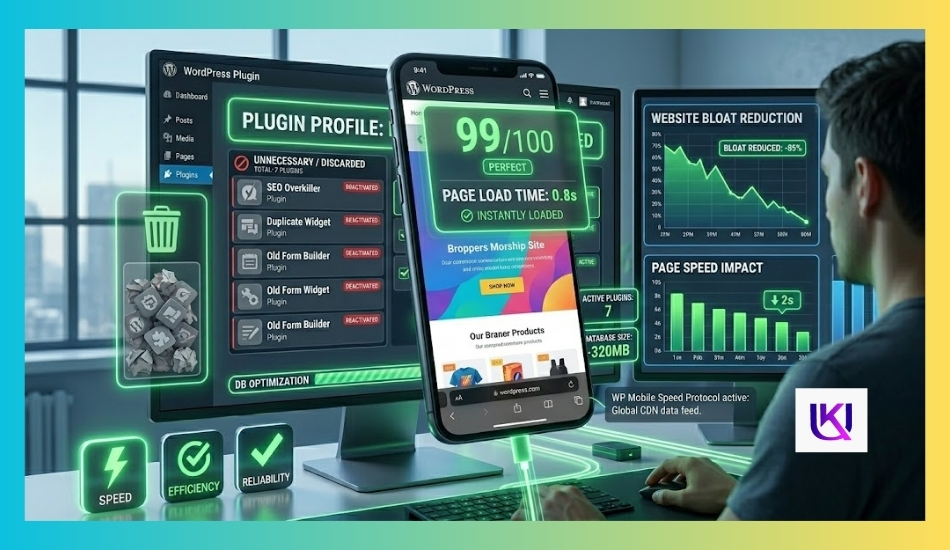
A fast WordPress site is not built with one plugin alone. Real performance comes from combining:
- strong hosting
- proper caching
- optimized images
- lightweight design
- regular maintenance
When all these areas work together, your website becomes:
- faster for users
- better for SEO
- smoother on mobile
- more reliable during traffic spikes
Conclusion: How to Make Your WordPress Site Load in Under 2 Seconds for a Beginner’s Guide?
A slow website does more damage than most people realize. It can push visitors away, lower conversions, and hurt your rankings in Google search results.
The good news is that most speed problems on a WordPress site are completely fixable.
You do not need expensive tools or complicated coding. In many cases, the biggest improvements come from simple steps like choosing better hosting, optimizing images, enabling caching, removing unnecessary plugins, and using a CDN.
To improve Core Web Vitals, the key is building a clean, lightweight setup that works together instead of relying on random plugins or quick fixes.
So, website speed is not only about technical scores. It is about giving real visitors a smooth and frustration-free experience on every device.
Even small speed improvements can lead to better SEO performance, lower bounce rates, happier users, more page views, and stronger conversions.
Start with the basics, test your site regularly, and improve one step at a time. Once your website becomes fast, everything else, from user experience to search visibility, becomes much stronger too.
Most relevant article: How to Start a WordPress Blog That Actually Makes Money in 2026?
FAQs: Fix a Slow WordPress Site Without Coding.
1. Why Is My WordPress Site Still Slow After Installing a Cache Plugin?
A cache plugin helps, but it cannot fix every problem on its own. Your website may still be slow because of weak hosting, large images, and too many plugins. heavy themes external scripts. A fast WordPress site needs a complete optimization setup, not just one plugin.
2. Does Website Speed Affect SEO?
Yes. Google uses page experience and Core Web Vitals as ranking signals. A slow website can lead to higher bounce rates, lower engagement, weaker mobile experience. Faster websites usually create a better experience for users and search engines.
3. What Is a Good Website Loading Speed?
Most experts recommend loading your website in under 2 seconds for a strong experience, under 3 seconds at a minimum. The faster your pages load, the more likely visitors are to stay on your site.
4. Can Too Many Plugins Slow Down WordPress?
Yes. Every plugin adds extra code and server requests. Too many plugins can increase page size, slow database queries, and load unnecessary CSS and JavaScript. Removing unused plugins often improves speed quickly.
5. Is Shared Hosting Bad for WordPress Speed?
Not always, but cheap shared hosting often struggles with performance. If many websites share the same server, your site may become slower during traffic spikes, unstable at busy times, and delayed in loading pages. Better hosting usually gives faster and more stable performance.
6. What Is the Best Cache Plugin for WordPress?
Popular options include: LiteSpeed Cache, WP Rocket, and W3 Total Cache. The best choice depends on your hosting setup, website type, and technical comfort level.
7. How Do I Improve Core Web Vitals?
Start with optimizing images, enabling caching, reducing unused scripts, improving hosting, and using a CDN. These changes improve LCP, CLS, and INP, which are the main Core Web Vitals metrics.
8. Does Cloudflare Really Improve Website Speed?
Yes, in many cases. Cloudflare helps by caching files globally, reducing server load, and improving delivery speed. This is especially helpful for visitors from different countries.
9. How Often Should I Test My Website Speed?
A monthly speed check is recommended. You should also test after installing plugins, redesigning pages, changing themes, and adding scripts. Regular testing helps prevent hidden performance problems.
10. Can I Make WordPress Fast Without Coding?
Yes. Most speed improvements today can be done using cache plugins, image optimization tools, lightweight themes, and CDN services. You do not need advanced coding skills to build a fast website.